
Test Exam Software Before Your Online Certification Session
Test Exam Software Before Your Online Certification Session
Before your online certification, test the exam software on the exact computer and network you'll use for the actual appointment. Run the official provider's system check, verify camera and microphone access, and resolve any blocked applications well before exam day. A practice quiz won't tell you if the proctoring client will run.
Start with your appointment confirmation, not a generic download link. This confirmation should identify your testing provider and direct you to the correct setup instructions. You're aiming to confirm three things: the software works, your room meets the exam rules, and you understand the check-in process.
Confirm Your Testing Provider and Current Requirements
Certification programs use different delivery platforms, and options can vary by exam and location. Check your booking details before installing anything.
For example, Microsoft's online exam guidance explains its online proctoring process, while AWS's exam scheduling guidance describes AWS testing options. Always follow the instructions specific to your appointment.
Keep these checks distinct:
| Check | What it establishes | What it doesn't establish |
|---|---|---|
| Official system test | If your current setup passes the provider's technical checks | Approval of your room or identity |
| Room and ID review | If your environment and identification meet the published rules | Your subject knowledge |
| Practice exam | How you perform on preparation questions | Compatibility with the official testing client |
Always read the current operating system, hardware, and network requirements. Don't assume your device is supported just because it can open the scheduling website.
How to Test Exam Software on Your Actual Exam Setup
A good rehearsal mimics your actual exam setup. Changing your laptop, network, or accessories afterward makes previous test results less reliable.
Run the Official Check on Your Exam Computer
Find the system-test link from your certification program or testing provider. Download software only through that official channel, then follow its instructions completely.
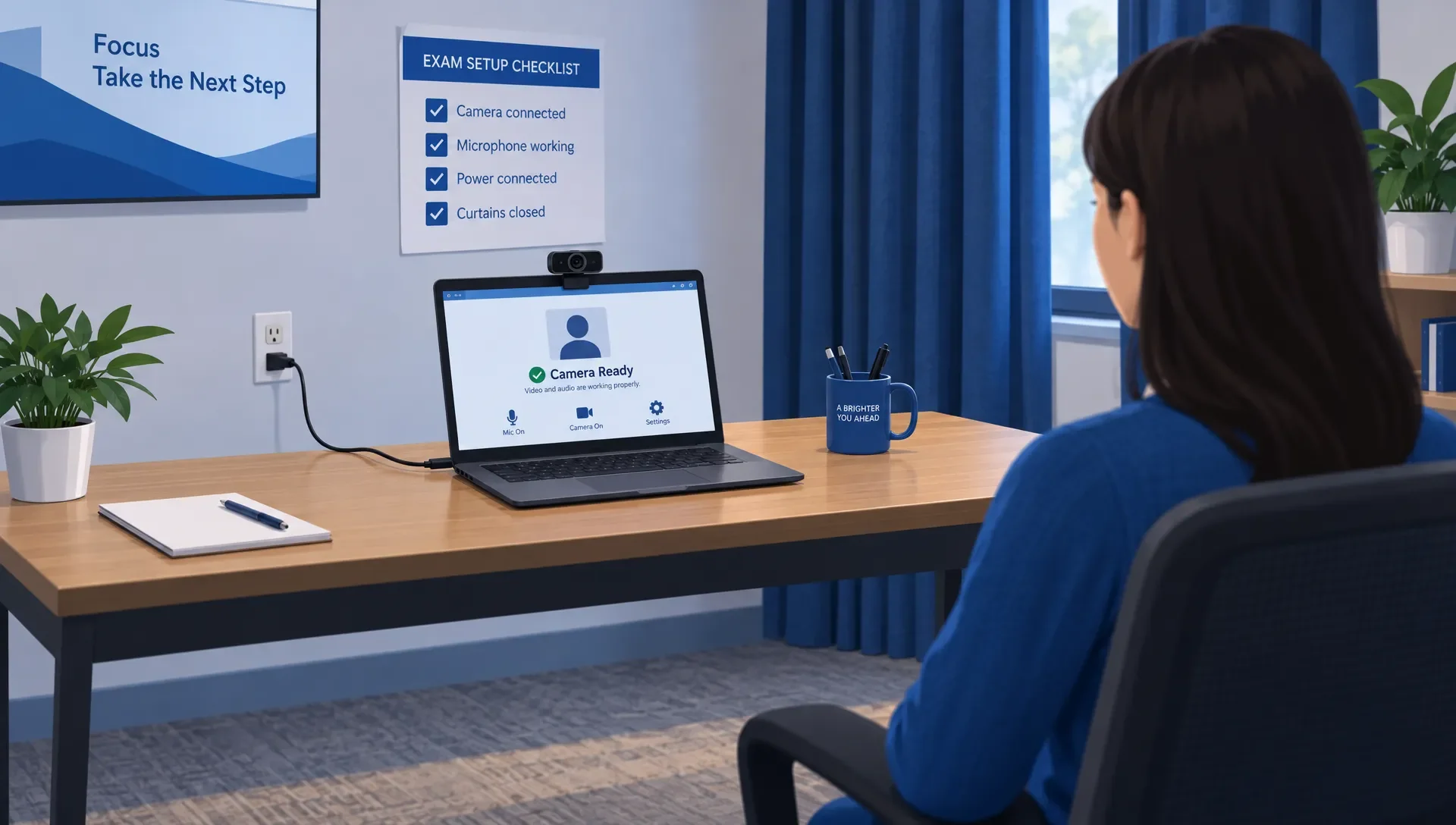
Use your planned webcam, microphone, and speakers during the check. Confirm that the camera produces a usable image and that the microphone captures your voice. If your computer has multiple audio devices, verify which one the client selects.
Connect your laptop to power. Close unnecessary applications and follow the provider's rules for additional monitors. If permission prompts appear, grant the required access and rerun the check after making changes.
Test the software beyond just downloading it. Complete every available check or simulation, instead of stopping once the installer opens. Keep any non-sensitive confirmation or result the provider supplies, but don't treat it as a guarantee of admission.
Check Network and Device Restrictions Early
Run the check on the network you expect to use. A successful rehearsal at home doesn't mean an office network will allow the same connections.
Managed computers often restrict installations, camera access, or background processes. VPNs, security tools, and corporate network controls can also conflict with testing client requirements. Check the official rules rather than experimenting with unsupported workarounds.
If you need administrator access or IT approval, resolve that before exam day. Don't disable required organizational protections without authorization. Using a supported personal computer or an approved alternative might be simpler than modifying a managed device.
Verify Your Room, Camera Position, and Identification
The software check is only one part of online exam readiness. You also need an acceptable testing environment and the identification specified by your program.
Prepare the Workspace You Will Actually Use
Read the rules for desk contents, additional displays, written materials, phones, and other devices. Don't assume something allowed during study is permitted during a proctored exam.
Choose a space where you can prevent interruptions. Tell anyone sharing the space when your appointment takes place and follow the provider's requirements for who may enter.
Check your camera position and lighting. Ensure your face is clearly visible, free from strong backlighting. If a room scan is required, confirm you can perform it with your camera setup without accidentally unplugging anything.
When you test exam software, also check if the physical setup is practical: can you sit comfortably, remain visible, and reach permitted controls without leaving the required position?
Check Your ID and Any Approved Accommodations
Compare the name on your booking with the identification requirements. Confirm which documents are accepted, whether they must be current, and how the provider handles name differences. Resolve discrepancies through the official support channel before the appointment.
Arrange accommodations through the certification program's process in advance. Don't assume assistive software, headphones, breaks, or other adjustments are automatically permitted because you normally use them.
Review the privacy and check-in instructions too. Submit identity documents only through the provider's approved process, not to a study platform or an unofficial support contact.
Schedule Your Technical Checks Before Exam Day
Leave enough time to fix a problem or choose another permitted delivery option. Running the first check immediately before check-in gives you little room to address an unsupported device or network restriction.
The following is a practical planning schedule, not a provider-mandated deadline. Your appointment rules take priority.
| When | What to do | What you want to confirm |
|---|---|---|
| Several days before | Review requirements and complete the official system test | Your planned setup passes the available checks |
| After a relevant change | Recheck after an operating system, security software, network or hardware change | The changed setup still works |
| Day before | Review ID, room, check-in instructions and support contacts | Nothing essential remains unresolved |
| Appointment day | Prepare the room and launch check-in at the instructed time | You're following the current appointment process |
Don't wait until your appointment window opens for the first software test. If you discover that your work laptop blocks the client, you may need help that isn't available immediately.
Keep technical preparation distinct from your final content review. A schedule for certification preparation without last-minute cramming can help you plan for both, rather than letting setup tasks consume your last study session.
Once your setup works, avoid unnecessary changes just before the exam. If a required update or equipment change occurs, repeat the relevant checks rather than relying on the earlier result.
What to Do When the System Test Fails
Troubleshoot one failed component at a time, instead of changing several things at once. Read the message, note which check failed, and consult the provider's official instructions.
Before the exam begins, record non-sensitive error details that support may need, such as the error wording, operating system, and the step where the problem occurred. Don't capture protected exam content or identity documents unless specifically instructed.
Camera or Microphone Problems
Check operating system permissions and the selected device. Close applications that might already be using the camera or microphone, such as meeting software, then rerun the official check.
If you use an external device, confirm that it remains connected and works in your operating system. Don't assume it will work inside the testing client just because another application recognizes it.
Use the provider's instructions to test exam software again after each relevant fix. This lets you see if the change actually resolved the failure.
Application or Connection Problems
If the client identifies a conflicting application, follow its instructions for closing it. Some programs continue running in the background after their windows close.
For connection failures, verify that you're using a permitted network configuration and that your connection is stable. Pause avoidable household downloads or streaming if they interfere with connectivity. Don't assume a high advertised internet speed means you won't have connection problems.
If a managed device or network blocks the client, contact IT or the testing provider. Avoid weakening security controls or repeatedly trying unsupported configurations.
Problems You Can't Resolve
Use the official support route and check the appointment's rescheduling rules. A failed system test doesn't automatically qualify you for a free change or refund.
If online delivery remains unsuitable, check whether your certification offers an available test-center option. Make that decision while you still have time to act under the booking rules.
Keep Technical Readiness Separate From Exam Readiness
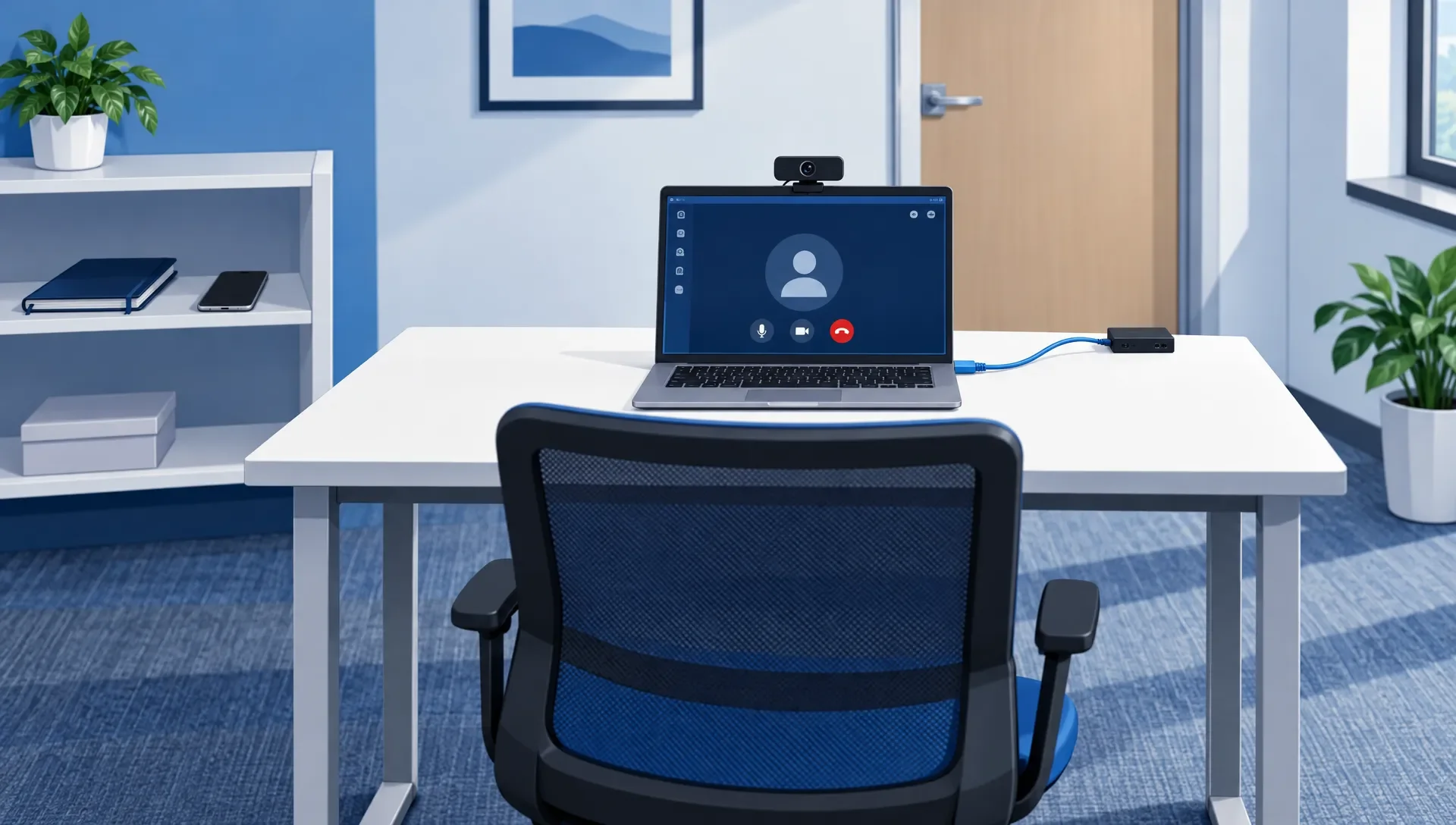
Passing the provider's system check doesn't mean you've mastered the exam objectives. Likewise, a strong practice score doesn't establish that your computer can run the official exam.
Use separate evidence for each. Technical readiness comes from the official checks and appointment requirements. Content readiness comes from your ability to answer unfamiliar questions, explain your reasoning, and handle the formats covered by your exam preparation.
For AWS candidates, MindMesh Academy's AWS Certified Cloud Practitioner practice exam helps with knowledge preparation, separate from technical checks. Review explanations and weak topics independently from software troubleshooting.
After you test exam software successfully, use your remaining study time to address specific gaps rather than repeatedly checking a setup that hasn't changed. Our guide on using practice questions to reveal gaps details this diagnostic approach.
You want both kinds of readiness in place before your appointment: a compliant setup and knowledge you can apply without relying on memorized answers.
Frequently Asked Questions
How early should I run the system test for an online certification exam? Run it several days before your appointment to allow time for troubleshooting. Follow any timing instructions from your provider and repeat relevant checks after changes to your device, software, or network.
Does passing the system test guarantee that I can take the exam? No. You still need to satisfy identification, room, conduct, and check-in requirements. Technical conditions can also change between your rehearsal and the actual appointment.
Can I use a work laptop for an online proctored exam? Only if it meets the provider's requirements and your organization's policies permit it. Managed devices may restrict installation, permissions, or network access, so check early and get authorization where needed.
Is a practice exam the same as the official software test? No. A practice exam evaluates your preparation for exam questions. The provider's system test checks technical compatibility. Complete both when they're relevant to your preparation.
What should I do if the software fails during check-in or the exam? Follow the provider's on-screen recovery instructions or the proctor's directions and use the authorized support channel. Don't take screenshots, use your phone, or leave the testing space unless the rules or proctor explicitly permit it. Refunds and rescheduling depend on the applicable policy.
Finish Setup, Then Focus Your Final Review
Use two final checks: test exam software through the official provider, then review the objectives you still struggle to explain. Keep technical problems out of your study workflow and knowledge gaps out of your setup checklist.
If you're preparing for Azure Fundamentals, use MindMesh Academy's AZ-900 practice exam to confirm your readiness and identify any remaining areas for study. Arrive with your setup verified and your final study time spent on material that needs attention.

Written by
Alvin Varughese
Founder, MindMesh Academy
Alvin Varughese is the founder of MindMesh Academy and an enterprise architecture leader. An electrical engineer by training, he moved from factory automation in South Africa to cloud architecture at GE Appliances and Humana (Fortune 50), and holds 20 professional certifications including AWS Solutions Architect Professional, Azure DevOps Engineer Expert, and Microsoft Agentic AI Business Solutions Architect. He built MindMesh Academy after interviewing too many highly certified candidates who couldn't answer basic questions: the goal is prep that makes you better at the job, not just able to pass the exam.