What Is Virtualization Technology Explained
What Is Virtualization Technology? Explained
How do providers like AWS and Azure serve millions of users efficiently? How can one physical server run dozens of different applications simultaneously? The answer is virtualization technology. This creates a software-based version, or virtual representation, of physical resources like servers, storage, or networks. It translates physical hardware into a digital format, allowing one physical computer to perform the work of many separate machines.
Virtualization partitions a single physical machine into multiple isolated environments. Each environment runs independently, using its own slice of the hardware's power. For professionals pursuing certifications like the CompTIA A+, AWS Certified Cloud Practitioner, or Azure Fundamentals, this concept is a vital building block. It supports almost every current IT infrastructure, including local data centers and global clouds. By abstracting the hardware, organizations gain flexibility and reduce costs by maximizing their existing equipment.
Understanding Virtualization Technology: The Core Concept
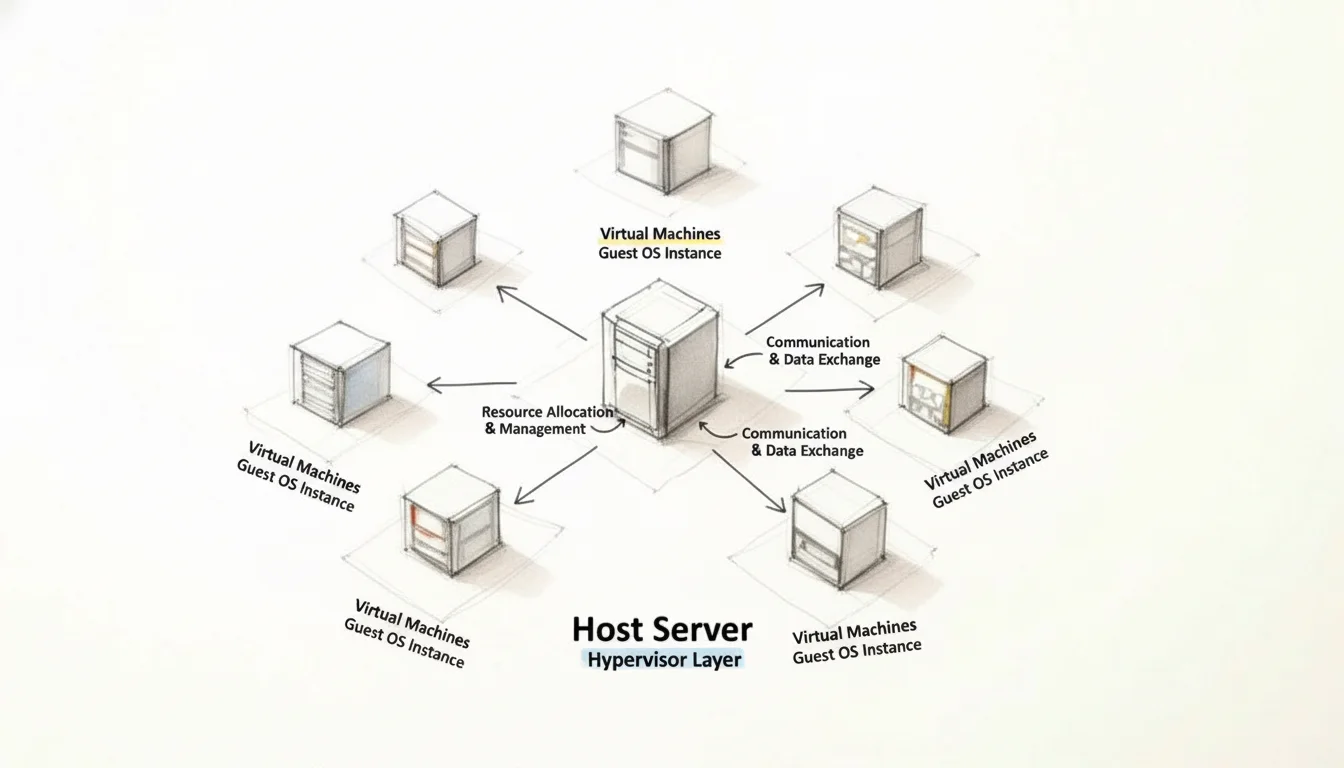
To understand virtualization, begin with a look at how physical computers traditionally operate. In a standard setup, a single server or desktop runs one instance of an operating system, such as Windows 11 or a specific Linux distribution. This software has direct control over the hardware components. However, virtualization changes this dynamic by introducing a software layer known as a hypervisor. This layer acts as a functional intermediary that sits either directly on the physical hardware or within a host operating system.
The hypervisor manages physical resources including CPU cycles, system memory (RAM), and disk storage. It divides these assets into distinct segments to create multiple virtual machines (VMs). Every VM operates as an independent computer with its own assigned virtual CPU, memory, and storage space. Within these isolated environments, you can install a Guest OS that functions without interfering with other VMs on the same machine. For instance, a single physical server can host one VM running Windows Server for database management, another VM running Ubuntu for a web server, and a third VM for a isolated development environment. Each guest system operates under the assumption that it has exclusive access to the hardware, while the hypervisor handles the actual resource distribution in the background.
 Caption: Virtualization allows a single physical server to efficiently allocate its resources (CPU, RAM, storage) across multiple isolated virtual machines, powering everything from local development to global cloud services.
Separating software from the physical hardware is a primary driver of modern IT efficiency. This technology supports large-scale cloud platforms and enterprise data centers by providing the necessary isolation for testing code or hosting services. By using a hypervisor to manage these resources, organizations can maximize their hardware utility and maintain high levels of security through environmental isolation. To clarify these functions, the following breakdown identifies the specific components involved in the process.
Virtualization at a Glance: Key Concepts
The table below outlines the primary components used in virtualized environments, explaining their technical functions and how they relate to a common physical structure.
| Component | Technical Role | Simple Analogy |
|---|---|---|
| Host Machine | The physical hardware, such as a server or desktop, that provides the raw computing power, including the CPU, RAM, and storage disks. | An apartment building structure that provides the foundation, walls, and essential utility connections for the entire site. |
| Hypervisor | A software layer that manages the creation and operation of virtual machines. It monitors resource requests and ensures that each VM remains isolated from others. | A building manager who assigns specific units to tenants, manages the distribution of water and electricity, and ensures no tenant disrupts their neighbors. |
| Virtual Machine (VM) | A software-defined computer that uses virtualized versions of hardware components. It functions as an independent system capable of running its own applications. | An individual apartment unit within the building. It is a self-contained living space that relies on the main building's infrastructure but remains private and separate. |
| Guest OS | The operating system installed inside a VM. It manages the virtual hardware exactly as it would on a physical machine, unaware of the other guest systems. | The tenant living in an apartment. Each tenant has their own furniture and daily routine, operating independently within their assigned unit. |
Recognizing the relationship between these four elements is necessary for understanding how modern IT infrastructures scale and remain operational under heavy demand.
Reflection Prompt: Can you think of a scenario in your current IT environment where these four components are clearly at play? How does the hypervisor specifically contribute to the efficiency of your systems?
The Growing Importance of Virtualization in Modern IT
Virtualization is a primary factor in the growth of the global digital economy. It allows companies to run dozens or even hundreds of virtual systems on a small number of physical servers, which reduces the need for expensive hardware and large data center footprints. This shift goes beyond simple hardware consolidation; it provides a method for achieving operational agility and system recovery.
Recent market data highlights the scale of this technology. The global virtualization software market had a valuation of USD 94.82 billion in 2023. Financial projections indicate this market will reach USD 218.76 billion by 2030 (verify current market forecasts on industry analyst sites). Such a significant increase in value demonstrates how deeply organizations rely on virtualized infrastructure for their daily operations and long-term growth.
Virtualization provides more than a way to save hardware resources. It serves as a framework for building IT systems that are flexible and scalable. This allows businesses to adapt to changing technical requirements and deploy new services without waiting for physical hardware shipments or installations.
Why Mastering Virtualization Matters for Your IT Career
For IT professionals, particularly those working toward industry certifications, understanding virtualization is a requirement rather than an elective skill. It serves as the functional basis for several advanced technologies that define the current tech industry:
- Cloud Computing: Services like AWS, Microsoft Azure, and Google Cloud Platform are built entirely on virtualized resources. Knowledge of how hypervisors and VMs interact is necessary for anyone pursuing roles in cloud architecture or system deployment.
- Containerization: Technologies like Docker and Kubernetes frequently operate on top of virtualized systems. Understanding the interaction between containers and VMs is a standard requirement for DevOps and modern software development.
- Cybersecurity: Security teams use virtualization to create isolated sandboxes for analyzing malware or suspicious files. This prevents threats from spreading to the main network and allows for safe testing of security patches.
- Data Center Management: Virtualization is the primary tool for maximizing server density. It enables features like live migration, where a running VM moves from one physical host to another to avoid downtime during hardware maintenance.
For those starting their career, knowledge of virtualization and cloud computing is a primary requirement for the CompTIA A+ (220-1201/220-1202) exams. As you move toward advanced credentials, such as the AWS Certified Solutions Architect or Microsoft Certified: Azure Administrator Associate, you will face rigorous testing on your ability to manage VMs and virtual networks. At MindMesh Academy, we focus on these technical foundations to ensure you can pass with confidence and apply these skills in a professional environment.
The following sections examine the specific technical mechanics of hypervisors and the various types of virtualization used in modern business. This knowledge will help you manage complex systems and prepare for the demands of a modern IT role.
How the Hypervisor Makes It All Possible
The functionality behind virtualization depends on a specific software component called the hypervisor. This software serves as the central controller that allows multiple operating systems and different applications to run at the same time on one physical computer. Without the hypervisor, the hardware would be locked into running a single operating system instance, leaving much of the underlying processing power unused.
A physical server functions much like a large office building. In this scenario, the hypervisor acts as both the architect who designed the layout and the manager who runs the daily operations. It sits as a functional layer between the physical hardware of the server and the virtual environments running on top of it. It divides the physical resources of the machine into separate, private units, similar to how a building is divided into individual apartments. These units are our virtual machines (VMs).
The hypervisor manages the distribution of the server’s primary hardware components: the central processing unit (CPU), random access memory (RAM), and disk storage. Its main goal is to provide each virtual machine with the specific amount of resources it needs to operate its own operating system and run its applications. The hypervisor also keeps every VM isolated from the others. This isolation is the primary reason virtualization is stable and secure. If a specific VM suffers a software failure, runs out of memory, or is hit by a virus, the other VMs on the same physical server are shielded. They continue to run their tasks without knowing there was a problem next door.
The diagram below shows where the hypervisor sits in the stack. It functions as the layer between the raw hardware and the various virtual machines that rely on that hardware to function.
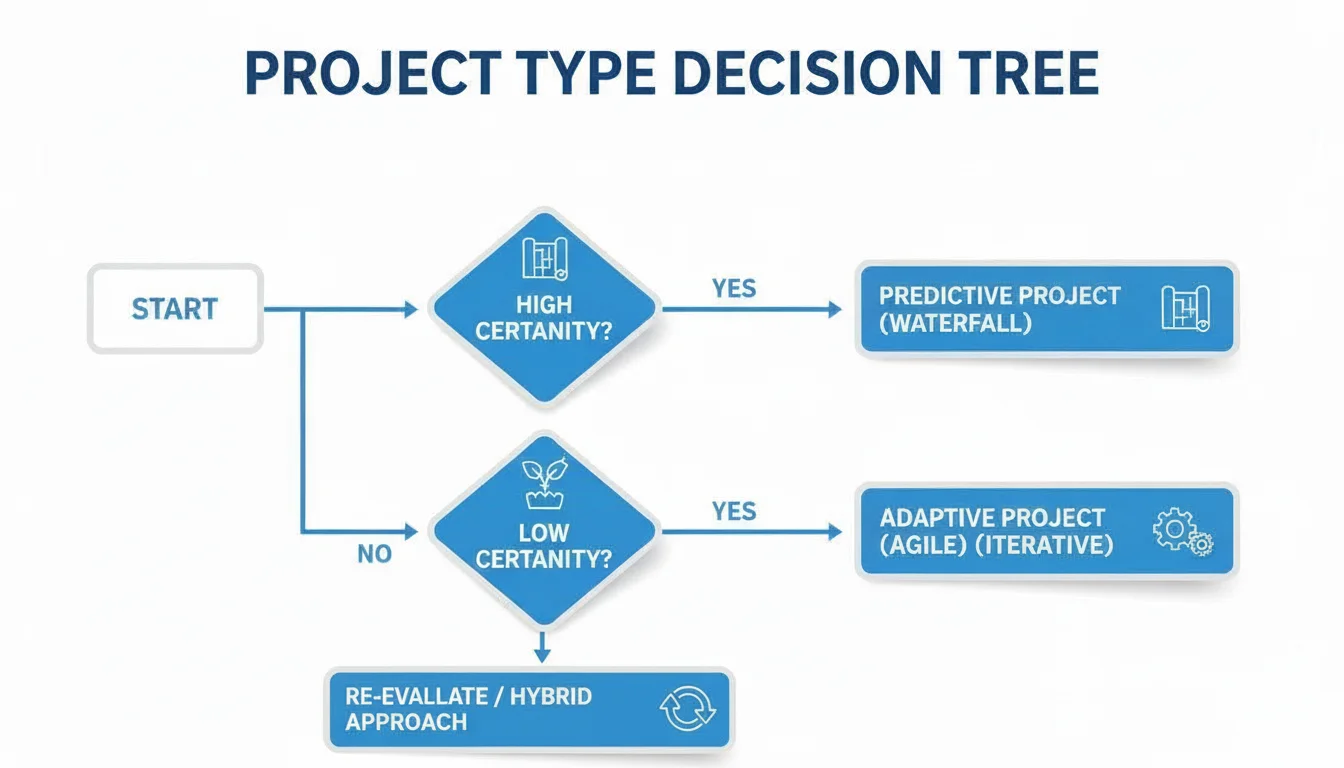 Caption: The hypervisor is the essential abstraction layer, enabling multiple, independent virtual machines to efficiently share and utilize the resources of a single physical server.
The hypervisor manages the execution of different operating systems side-by-side. By doing this on a single machine, organizations can get the most out of their hardware and change their configurations quickly as needs shift.
The Two Flavors of Hypervisors: Type 1 vs. Type 2
Hypervisors are categorized into two main groups. Each group uses a different method to manage the virtual environment. Understanding these two types is necessary for anyone looking to use virtualization in different settings, such as a massive data center or a small laptop used for coding. IT professionals studying for certifications often find that virtualization concepts including hypervisors and VMs are a major part of the exam requirements.
Type 1: The "Bare-Metal" Hypervisor
A Type 1 hypervisor is also known as a "bare-metal" hypervisor. This type provides the highest levels of performance and efficiency available in virtualization. It is called bare-metal because it is installed directly on the hardware of the server. There is no host operating system like Windows or Linux sitting underneath it. The hypervisor acts as the operating system itself for the hardware, managing every hardware request from the virtual machines.
Because the hypervisor communicates directly with the physical CPU and memory, there is very little delay in processing. This lack of an extra software layer reduces overhead and makes the system faster and more stable. Security is also improved because there are fewer software components that a hacker could target.
Type 1 hypervisors are the standard choice for professional environments that need high speed and constant uptime. This includes the infrastructure for cloud providers like AWS EC2 or Azure Virtual Machines. Large companies use Type 1 hypervisors in their data centers to ensure their applications stay online and perform well under heavy traffic.
- How it works: You install this software directly onto the server hardware.
- Performance: This type offers high performance because it has direct hardware access and very little software overhead.
- Common examples: VMware vSphere/ESXi, Microsoft Hyper-V (specifically when it is used as a server role), and KVM (Kernel-based Virtual Machine), which is part of the Linux kernel.
- Best for: This is used for production servers, cloud systems, and data centers. It is the best choice when stability and security are the top priorities. It is also a major topic in exams for server management and cloud administration.
The Type 1 hypervisor is like a foundation for an apartment complex that was built specifically to hold many residents. Every part of the structure is designed to keep those residents separate and provide them with the utilities they need as efficiently as possible.
Type 2: The "Hosted" Hypervisor
A Type 2 hypervisor is known as a "hosted" hypervisor. This software runs like any other application on a computer that already has an operating system. For example, if you have a laptop running Windows 11, you would install the Type 2 hypervisor just like you would install a web browser or a word processor.
Type 2 hypervisors are easy to set up. This makes them the favorite choice for software developers, students, and IT experts who want to test things on their own computers. You can use a Type 2 hypervisor to create a virtual machine that runs a different operating system than your main computer. If you use a Mac but need to run a piece of software that only works on Windows, a Type 2 hypervisor allows you to do that without buying a second computer.
The downside of this convenience is a drop in performance. Every time the virtual machine needs to use the CPU or save a file, that request must go through the hypervisor, then through the host operating system, and finally to the hardware. This extra step creates overhead, which makes Type 2 hypervisors slower than the bare-metal variety.
A hosted hypervisor is like building a small, private office inside a large rented warehouse. The office works fine for its own tasks, but it relies on the warehouse’s electricity, plumbing, and entryways to function.
Here is a summary of how these two types compare:
| Feature | Type 1 (Bare-Metal) | Type 2 (Hosted) |
|---|---|---|
| Installation | Directly on physical hardware | As an application on an existing OS |
| Performance | High and near native speeds | Lower due to the host OS layer |
| Isolation & Security | Stronger through direct hardware control | Moderate and relies on the host OS |
| Use Case | Cloud providers and data centers | Personal computers and testing labs |
| Examples | VMware ESXi, Microsoft Hyper-V, KVM | VMware Workstation, Oracle VirtualBox, VMware Fusion |
Choosing between Type 1 and Type 2 depends on what you need to accomplish. For high-stakes systems that must stay online and run as fast as possible, Type 1 is the clear winner. For someone who is just learning how to configure a server or needs to test a new app in a safe environment, Type 2 is a better and more accessible choice.
Reflection Prompt: Think about your current computer setup and your goals. Which type of hypervisor would be more helpful for building a lab to study for your next certification exam? Consider the hardware you already own and the amount of performance your lab machines will likely require.
The Different Flavors of Virtualization: Beyond Servers
Virtualization is not a single, unchanging technology. It is a versatile toolkit that provides different specialized approaches. Each approach is designed to solve a specific set of IT problems. Understanding these various forms is essential to see how virtualization fixes business issues, such as making remote work secure or making large cloud data centers run more efficiently.
Every type of virtualization focuses on a different part of the IT stack. However, they all follow the same basic rule. They separate software from the physical hardware it runs on. This separation allows for much higher efficiency, more flexibility, and easier scaling. The diagram previously shown shows how a hypervisor works as the middleman. It sits between the hardware and the virtual machines to manage resources. We will now look at how this concept works in different areas of technology.
1. Server Virtualization: The Foundation of Modern Data Centers
This is the most common form of the technology and has had the biggest impact on the industry. For a long time, IT departments followed a simple rule: one physical server for every one application. If a company wanted to start using a new accounting program, they had to buy a new physical server. They then had to set it up and find space for it in the server room. This led to rooms full of expensive machines that were barely being used. Most of these servers used only a small fraction of their total power.
Server virtualization changed that entire process. An administrator installs a Type 1 hypervisor on a strong physical server. This software allows them to split that one machine into many isolated virtual servers. Each of these virtual machines (VMs) functions like its own computer. They can each run a different operating system or different software. They all share the CPU, memory, and storage of the single physical machine underneath them. This makes the data center much more efficient because you need fewer physical boxes to do the same amount of work.
Key Takeaway for Certification Candidates: The main goal of server virtualization is consolidation. Organizations want to put as many virtual servers as possible on the fewest number of physical hosts. This move reduces the money spent on hardware. It also lowers the cost of electricity for power and cooling. It is normal to see server usage go from a low 5-15% in a traditional setup to 80% or even higher after virtualization. You will need to understand this concept for most cloud and data center administration exams. (Verify current exam objectives on the vendor site).
2. Desktop Virtualization (VDI): Empowering the Modern Workforce
Desktop Virtualization, often called Virtual Desktop Infrastructure (VDI), takes the ideas from server virtualization and applies them to the computers that employees use every day. In a standard setup, an employee has a physical PC with Windows or macOS installed on the local hard drive. With VDI, the entire desktop environment lives on a central server in a data center. The operating system, the files, and the applications all run as a virtual machine in that central location.
The employee then uses a different device to see and use that virtual desktop. They might use a small "thin client" device, a regular laptop, a tablet, or even a phone. The keyboard and mouse movements go to the server, and the server sends the image back to the screen. VDI provides several major benefits for a business:
- Centralized Management: The IT department can update or fix thousands of desktops at once from a single screen. They do not have to go to every desk in the building to install a new patch. This makes IT work much faster.
- Enhanced Security: Company data never actually leaves the data center. It is not stored on the employee's laptop. If an employee loses their laptop at an airport, no secret company data is lost because the data was never on that device in the first place.
- Flexible Remote Access: It is very easy to get a new remote worker started. IT can create a new virtual desktop in a few minutes. The worker can then log in securely from their home and start working immediately.
- Cost Savings: Companies do not have to buy new, expensive computers for every person every few years. They can keep using older devices because the central server is doing all the heavy processing work.
VDI is a critical tool for companies that have people working from home or from many different locations. It keeps the work experience the same for everyone regardless of where they are sitting.
3. Network Virtualization: Agile Infrastructure Management
Server virtualization hides the physical server from the software. Network virtualization does the same thing for the network. It hides the physical cables and switches. This allows an administrator to create a full network with all its parts using only software. This virtual network runs on top of the physical wires that are already there. This is a major part of what people call Software-Defined Networking (SDN).
Imagine a group of developers who need a private network to test a new app. In the old days, an IT person would have to go to the server room. They would plug in new cables and change settings on physical routers and firewalls. This was slow and could lead to mistakes. With network virtualization, an admin can build that whole network in a few minutes using a software program. They can create virtual switches, routers, and firewalls without touching a single physical wire.
This approach gives the company a lot of agility. They can change how data moves through the building or across the world very quickly. It also makes things more secure. You can easily separate different types of traffic so that a guest on the office Wi-Fi cannot see the company’s private financial data. Doing this with physical hardware alone is very difficult and costs a lot of money.
4. Storage Virtualization: Simplifying Data Management
Storage virtualization is used to manage the massive amounts of data that companies create every day. It works by taking many different storage devices and making them look like one big pool of space. These devices might be from different brands like Dell or HP. They might be connected in different ways, such as through a Storage Area Network (SAN) or Network Attached Storage (NAS). Storage virtualization hides these differences and presents one "virtual" disk to the rest of the system.
Administrators can give storage space to servers and apps from this central pool. They do not need to know which specific hard drive or which physical box is actually holding the data. This makes daily work much easier. If a company needs to move data from an old storage box to a new one, the virtualization layer can handle it in the background. The applications using the data never even know the move is happening. This makes things like backups and disaster recovery much simpler to handle. It ensures that the company is using every gigabyte of space they paid for.
Comparing Virtualization Types
This table shows a quick comparison of the different types of virtualization. It highlights how each one is used and why it is helpful for a business.
| Virtualization Type | Primary Use Case | Key Benefit | Example Application |
|---|---|---|---|
| Server Virtualization | Running many different operating systems on one physical machine to save space and power. | Greatly increases how much the hardware is used, which saves money on power and physical space. | A company that runs 30 different web and database servers on just three physical host machines. |
| Desktop Virtualization (VDI) | Running user desktops on a central server so they can be accessed from any device. | Makes managing desktops easier and keeps data safe inside the data center instead of on laptops. | A hospital that lets doctors look at patient records from any tablet or computer in the building securely. |
| Network Virtualization | Building and managing entire computer networks using software instead of physical hardware. | Allows for fast setup of new networks and better security by separating different types of traffic. | A software team that creates a private virtual network in minutes to test a new application. |
| Storage Virtualization | Taking many different storage boxes and turning them into one big pool of data storage. | Makes it easier to manage data and move it between different storage brands without stopping work. | A large business that combines storage from Dell and NetApp into one big pool for all their servers. |
Every one of these virtualization types has a different job. When a company uses all of them together, they can build an IT environment that is much more flexible and costs less to run.
Reflection Prompt: If a company combined server virtualization with network virtualization, how would that help them recover from a hardware failure more quickly?
The Business Case for Virtualization Technology: Driving Value
_Caption: This video from IBM provides a visual overview of how virtualization works and its fundamental benefits._Organizations adopt virtualization because it addresses three critical pressure points: cost, speed, and reliability. It is more than a technical preference; it has become a financial requirement for modern IT departments. Before this technology became standard, data centers followed a rigid "one application, one server" model. This approach created inefficiencies that were difficult to manage. A single physical server dedicated to one application often sat idle, using only 5-15% of its processing power. Even though the server was doing very little work, it still required full power, cooling, and rack space.
Virtualization changes this equation by letting one physical machine host dozens of virtual ones. This consolidation allows companies to buy fewer servers, which lowers capital expenses. It also cuts operational expenses because fewer machines mean lower utility bills and less physical space required for hardware in the server room. IT leaders often see these savings as the primary reason to virtualize, as the return on investment appears almost immediately on the balance sheet. Instead of managing 100 physical servers that are mostly empty, a team might manage five or ten high-performance hosts that are fully used. This efficiency allows the business to get the most value out of every dollar spent on hardware.
Gaining Unmatched Agility and Speed
The speed of a business often depends on how quickly the IT department can respond to new requests from staff or customers. In a traditional hardware-based setup, launching a new service is a slow and manual process. It involves ordering hardware, waiting for shipping, mounting the server in a rack, and manually installing the operating system. This process can take weeks or even months depending on vendor availability and shipping schedules.
Virtualization removes these physical barriers. A system administrator can create a new virtual machine from a pre-configured template in minutes. This speed allows developers to test patches or deploy new features without waiting for physical hardware arrivals. This on-demand nature is why many teams use cloud-based development services, which provide virtualized environments that can be scaled up or down as needed.
Because a virtual machine exists as a set of files, it can be copied or moved between physical hosts without shutting down the service. This mobility makes workload management much easier for administrators who need to perform maintenance on physical hardware. If a physical host needs a memory upgrade, the administrator can move the running virtual machines to a different host, perform the upgrade, and move them back. This happens without users noticing a disruption in service. This level of flexibility was impossible when applications were tied to the specific physical hardware of a single server.
A Better Approach to Disaster Recovery and Business Continuity
Protecting data and maintaining uptime used to require expensive, identical hardware at multiple locations. Virtualization simplifies this by turning a server's entire identity—its operating system, apps, and data—into a portable file. This change affects how companies handle backups and recovery.
When a server is just a file, you can copy the entire system to a backup location or a different data center. If the primary hardware fails, you do not need to find an identical physical machine to get back online. You can start the virtual machine on any available host that has enough resources. This reduces the risk of long-term downtime.
By backing up an entire virtual server as a single file, you change the recovery timeline. If a site failure occurs, you can restore that VM to any available physical machine in minutes. This reduces Recovery Time Objectives (RTO) and Recovery Point Objectives (RPO), which keeps the business running and protects its reputation during an outage.
This method strengthens business continuity plans through several advantages:
- Rapid Recovery: You can restore a VM much faster than you can rebuild a physical server from a tape backup or a fresh operating system installation. This minimizes the time employees are unable to work.
- Hardware Independence: Since VMs are not tied to specific physical parts, you can restore them to any machine that has a hypervisor. This prevents problems caused by discontinued hardware models and stops vendor lock-in. You do not have to worry if the new server has the same RAID controller as the old one.
- Simplified Testing: You can test your recovery plan by cloning production servers into an isolated network. This allows you to verify that your backups work without disturbing the live environment or the customers using it. Regular testing ensures that when a real disaster happens, the team knows exactly how to respond.
Strengthening Security and Reducing Your Environmental Footprint
Virtualization provides a layer of separation that helps secure the network. Even though multiple virtual machines share the same physical CPU and RAM, the hypervisor keeps them isolated. If a virus infects one VM, it cannot easily jump to another VM on the same host. This isolation acts like a digital container, limiting the damage of a security breach. Administrators can also use this feature to run older applications that might have security vulnerabilities in a restricted environment where they cannot threaten the rest of the network.
There is also a benefit to this consolidation regarding the environment. A data center with 10 virtualized hosts uses much less electricity than a center with 100 physical servers. Lower power usage means less heat generation, which reduces the energy needed for cooling systems. For companies trying to meet sustainability goals, reducing the carbon footprint of their IT department is a practical way to show progress.
The financial and operational arguments for virtualization remain strong. Market data indicates that the industry is still growing. The data center virtualization market was valued at approximately USD 8.5 billion in 2024 (verify current figures on market research sites). Analysts expect it to reach USD 21.1 billion by 2030 (verify projected growth with updated industry reports). This growth is driven by the constant need for efficient and flexible infrastructure that can scale as quickly as the business requires. Virtualization provides the foundation for that growth by delivering value that shows up in both performance metrics and financial reports.
Virtualization vs. Containers: What Every IT Pro Needs to Know
As you explore modern infrastructure technologies, you will encounter containers. While virtualization and containerization both run multiple isolated applications on one machine, they use different architectural methods. Understanding this distinction is necessary for making smart design and deployment decisions in modern technical environments, especially as you prepare for advanced certifications.
A simple comparison clarifies how these two technologies handle resources and isolation.
A virtual machine (VM) functions like a standalone house. Each house has its own foundation, plumbing, wiring, and roof. Every structure is self-contained and independent. A container functions like an apartment in a high-rise. Each unit provides a private living space for residents, but every apartment shares the building's main infrastructure—the foundation, central water lines, and structural frame.
 Caption: Visualizing VMs as independent houses versus containers as apartments within a shared building clarifies their distinct architectural approaches to resource isolation.
This comparison illustrates the differences in how these systems consume hardware resources and maintain separation.
The Key Technical Difference: Isolation Levels
Virtual machines isolate workloads by virtualizing physical hardware. A hypervisor manages the physical CPU, memory, and storage, then presents a virtual version of these components to each VM. Because the VM operates like a real computer, you must install a full guest operating system (OS)—such as Windows Server or a specific Linux distribution—inside every VM instance. This approach provides strong security boundaries. It allows you to run a Windows application and a Linux application on the same physical box without them interacting. The drawback is the resource cost. Each guest OS requires its own memory, disk space, and processing power, which often totals several gigabytes per VM.
Containers operate at the operating system level, which is a lighter method of isolation. Instead of creating virtual hardware, a container engine like Docker uses the host machine’s OS kernel. Every container on that server shares the same kernel. A container only includes the application code, specific runtimes, and the libraries it needs to function. It does not include a guest OS. This makes containers much smaller than VMs. They use fewer resources and start up almost instantly.
When to Choose One Over the Other
Because the architectures differ, VMs and containers serve different technical needs.
-
Choose Virtualization (VMs) when:
- Maximum Isolation and Security are Needed: Use VMs when you must ensure the highest level of separation between different applications or users. The hardware-level barrier provided by the hypervisor makes it difficult for an attacker to reach the host or other VMs if one instance is compromised. This is also the right choice when you need to run completely different operating systems on one server.
- Legacy Applications are Involved: Some older software requires a specific, outdated version of an OS or unique system configurations. These apps are often difficult to package into containers. Moving the entire OS into a VM is usually the best way to keep these legacy systems running on modern hardware.
- Specific OS Kernels are Required: If an application depends on a specific Linux kernel version or a custom Windows build that differs from what the host uses, you must use a VM. Since containers share the host kernel, they cannot run a kernel version that is different from the host.
-
Choose Containers when:
- Speed, Efficiency, and Portability are Key: Containers are lightweight and can spin up in seconds. This speed is a requirement for microservices architectures, where an application is broken into small, independent parts. They are also ideal for testing environments and automated CI/CD pipelines where you need to create and destroy environments quickly.
- High Density and Resource Optimization are Goals: Because containers do not have the overhead of a guest OS, you can fit many more of them on a single server compared to VMs. This allows for better hardware utilization and can reduce cloud computing costs.
- Application Deployment and Scaling are Prioritized: A container bundles an application with everything it needs. This ensures the application behaves the same way on a developer's laptop as it does on a testing server or in production. This consistency is a core part of modern DevOps practices.
For IT professionals in engineering or operations, knowing both technologies is a requirement. If you work in cloud environments like AWS, you must understand how to manage container platforms for scalability such as AWS ECS or EKS. These tools help automate the deployment and management of containerized apps across many servers.
Virtualization and containers are complementary tools rather than competing technologies. In most cloud environments, containers actually run inside virtual machines. This setup combines the security and hardware management of VMs with the speed and portability of containers.
Reflection Prompt: Imagine you need to deploy a new web application and its database. Which technology (VMs or containers) would you choose for each component, and what factors would influence your decision?
Common Questions About Virtualization Technology
As you study virtualization, several practical questions often arise. Clear answers help solidify your grasp of how this technology operates in real-world IT environments. Let’s address some of the most frequent inquiries regarding host systems, security protocols, and hardware requirements.
What Is a Host Versus a Guest Machine?
This distinction is the starting point for understanding how resources are divided.
- The host machine: This is the physical server or workstation—the tangible hardware including the central processing unit (CPU), random access memory (RAM), and storage drives. You can physically touch the host. It provides the actual computing power used by every virtual entity it supports. It acts as the underlying infrastructure for all virtualized operations.
- The guest machine: This is the virtual machine (VM) that operates on that host. A single host can support many guest machines at the same time. One way to visualize this is to compare the host to a large apartment complex. While the host is the physical building structure, each guest machine is an individual, self-contained apartment. Every apartment has its own virtual utilities (representing the virtual CPU, RAM, and OS), but they all rely on the same physical foundation and building systems. This separation allows you to manage each VM independently while using a shared pool of physical resources.
Is Virtualization Secure by Default?
Virtualization provides security advantages through isolation. Because each VM stays within its own logically separated environment, a security threat or software failure in one guest usually stays contained. If a virus infects a single VM, it cannot easily spread to other VMs or the host. This logical segmentation acts as a strong barrier that protects the rest of the system from local failures or infections.
However, virtualization is not a complete security solution. The hypervisor—the software layer that manages the VMs—represents a single point of failure. If an attacker compromises the hypervisor, they could gain control over every guest machine on that server. This type of attack is often called a VM escape. Protecting the hypervisor requires keeping software updated, applying security patches immediately, and following strict configuration standards. Containment is the main security advantage here: a breach inside one VM stays inside that specific environment, preventing a single failure from affecting the entire server.
Can You Run Different Operating Systems Together?
Yes. This flexibility is one of the primary reasons organizations adopt virtualization. A physical host can run multiple virtual machines concurrently, each using a different operating system. This capability removes the need for separate physical hardware for every different OS requirement.
For example, a high-performance physical server can simultaneously support:
- Windows Server VM: A machine running Windows Server to handle user authentication and file storage.
- Linux VM: A machine running a distribution like Ubuntu to host a web server or manage containerized applications.
- Legacy VM: A machine running an older version of Windows or Linux to support a legacy application that won't run on modern hardware.
The hypervisor manages how these systems interact with the hardware. It makes sure each operating system gets the CPU cycles and memory it needs to function correctly. This allows disparate systems to run side-by-side without one crashing or interfering with the performance of another.
Do You Need Special Hardware for Virtualization?
For basic testing, you might not need specialized parts, but professional environments require hardware support. Modern processors from Intel and AMD include specific instructions designed to speed up virtual operations. Intel uses VT-x technology, while AMD uses AMD-V.
These hardware-assisted features allow the CPU to handle virtualization tasks directly rather than forcing the software to emulate every instruction. While Type 2 hypervisors can sometimes run without these features enabled, the performance will be poor. The system will feel slow, and resource use will be inefficient. To use these features, you must enable them in the BIOS or UEFI settings of the computer. In any production or enterprise setting, using CPUs with these built-in extensions is the standard way to build a functional virtualized environment.
Ready to master the concepts for your next IT certification, from virtualization to cloud computing? MindMesh Academy offers study guides, practice questions, and learning tools to help you pass with confidence. Learn how to apply these concepts in real-world scenarios. Start your training at MindMesh Academy today.

Written by
Alvin Varughese
Founder, MindMesh Academy
Alvin Varughese is the founder of MindMesh Academy and an enterprise architecture leader. An electrical engineer by training, he moved from factory automation in South Africa to cloud architecture at GE Appliances and Humana (Fortune 50), and holds 20 professional certifications including AWS Solutions Architect Professional, Azure DevOps Engineer Expert, and Microsoft Agentic AI Business Solutions Architect. He built MindMesh Academy after interviewing too many highly certified candidates who couldn't answer basic questions: the goal is prep that makes you better at the job, not just able to pass the exam.