Unix "unix linux interview questions" Essentials for Your Next Interview
Unix & Linux Interview Questions: Essentials for Your Next Interview
IT professionals preparing for technical interviews need a firm grasp of Unix and Linux. If you want to work as a System Administrator, DevOps Engineer, Cloud Architect, or Software Developer, your command-line skills and ability to explain core concepts are vital. The range of unix linux interview questions covers everything from basic file operations to complex process management and network configuration. These skills are required for several professional certifications like CompTIA Linux+, Red Hat Certified System Administrator (RHCSA), and various AWS or Azure specialty exams.
Many talented candidates fail not because they lack knowledge, but because they cannot explain technical ideas clearly under pressure. This guide from MindMesh Academy bridges that gap by breaking down fundamental questions often found in interviews. We provide the "what," "how," and "why" behind these answers to satisfy both hiring managers and certification boards. Interviewers do not just look for technical recall; they evaluate your logic, critical thinking, and communication. Reviewing general strategies for common interview questions is also helpful to prepare for the interpersonal side of the meeting and build confidence before the session begins.
This article provides specific answers, practical command examples, and common pitfalls to avoid during the technical screening process. You will learn about several critical topics:
- Filesystem navigation and the difference between absolute and relative paths.
- User and file permissions including ownership, access control, and permissions levels.
- Process and service management for monitoring system resources and background tasks.
- System startup procedures and how various initialization systems like systemd function.
- Advanced searching and text manipulation using tools like
findandgrep.
Mastering these concepts allows you to demonstrate technical proficiency, perform well in interviews, and reach your certification goals. Use these details to turn interview anxiety into clear expertise.
1. Explain the difference between absolute and relative paths in Linux
Interviewers often use this as one of their go-to unix linux interview questions to gauge your understanding of filesystem logic. Your ability to reference file locations accurately determines how reliably your commands and shell scripts will run. An absolute path provides a file's full address, always starting from the root directory (/). By contrast, a relative path defines a location based on where you are currently standing within the filesystem.
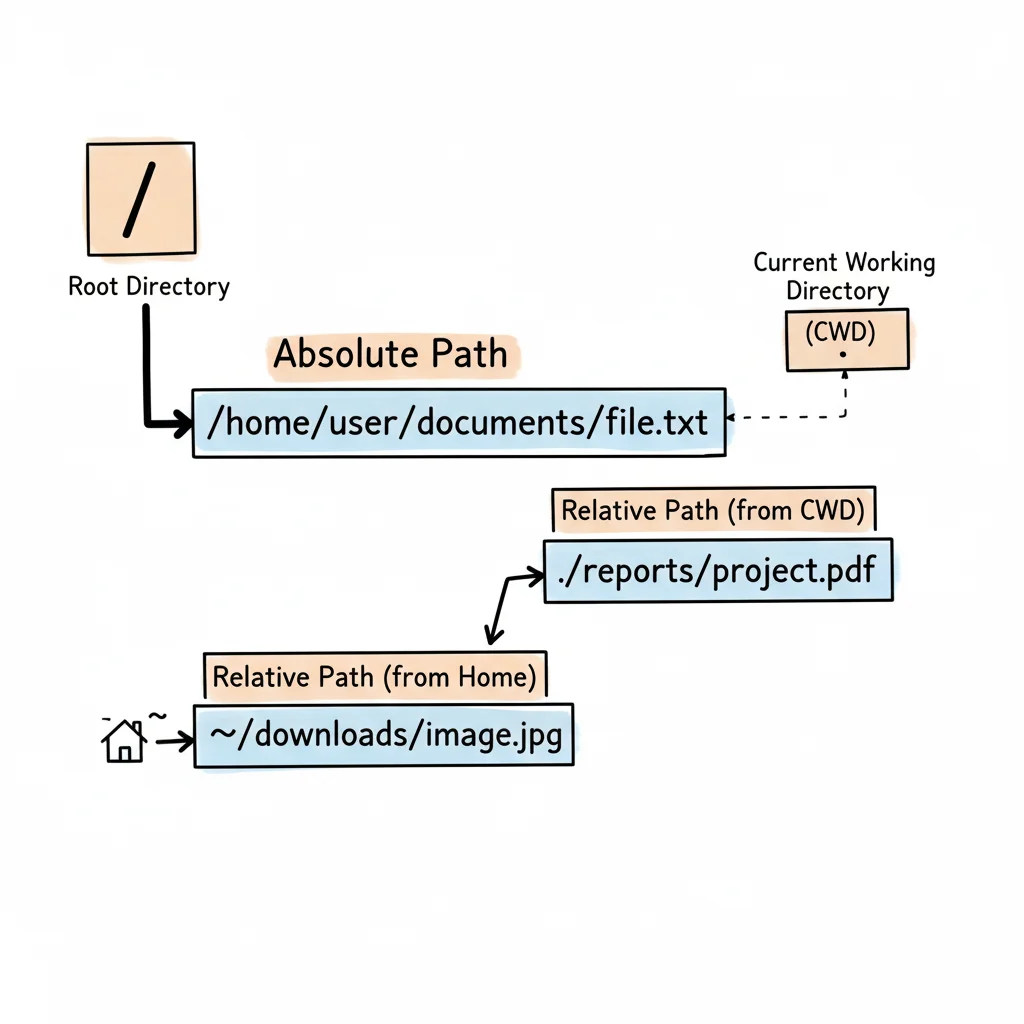
Distinguishing between these path types is a daily necessity for any administrator. You will use these concepts when navigating the command line, writing scripts, or managing resources in cloud environments like AWS EC2 or Azure Linux VMs. Accurate path specification is vital for system stability. This concept appears frequently in study materials for Linux Client Desktop Operating System features.
Core Concepts and Practical Examples
To answer this question effectively during a technical interview or a certification exam, provide clear examples for both path types.
-
Absolute Path:
- This path always begins with a
/. - It is unambiguous. It points to the same location regardless of your current working directory.
- Example: Using
cd /var/logorcat /home/sara/documents/report.txtensures you access the specific file intended, as/var/logis a direct and undeniable location.
- This path always begins with a
-
Relative Path:
- This path never starts with a
/. - Its meaning depends on your current location, which you can check using the
pwdcommand. - It uses notations like
.for the current directory and..for the parent directory. - Example:
- If your current directory is
/home/sara, you can access a report by typingcat documents/report.txt. - If you are inside
/home/sara/images, you can reach that same report by moving up one level first:cat ../documents/report.txt.
- If your current directory is
- This path never starts with a
Actionable Tips for Interviews and Certification Scenarios
When an interviewer brings up paths, they want to see your grasp of best practices. They are looking for more than a memorized definition.
- Confirm Your Location: Mention that you use
pwdto verify your directory before running commands with relative paths. This shows you are methodical and careful with system changes. - Show Path Resolution: Mention the
readlink -f <filename>command. This tool resolves any path—whether it is relative or contains symbolic links—into its full absolute path. This is a great troubleshooting technique to mention. - Scripting Best Practices (Certification Focus):
- For critical system files in shell scripts, such as logs or configurations, use absolute paths. This ensures the script does not break if a cron job executes it from an unexpected directory.
- Use relative paths when your script needs to access files within its own folder structure. This makes the project portable, allowing it to run correctly even if the parent folder is moved to a different part of the system.
Key Takeaway: Use absolute paths to ensure stability in production environments and relative paths to maintain portability within individual projects.
2. What are file permissions in Linux and how do you change them?
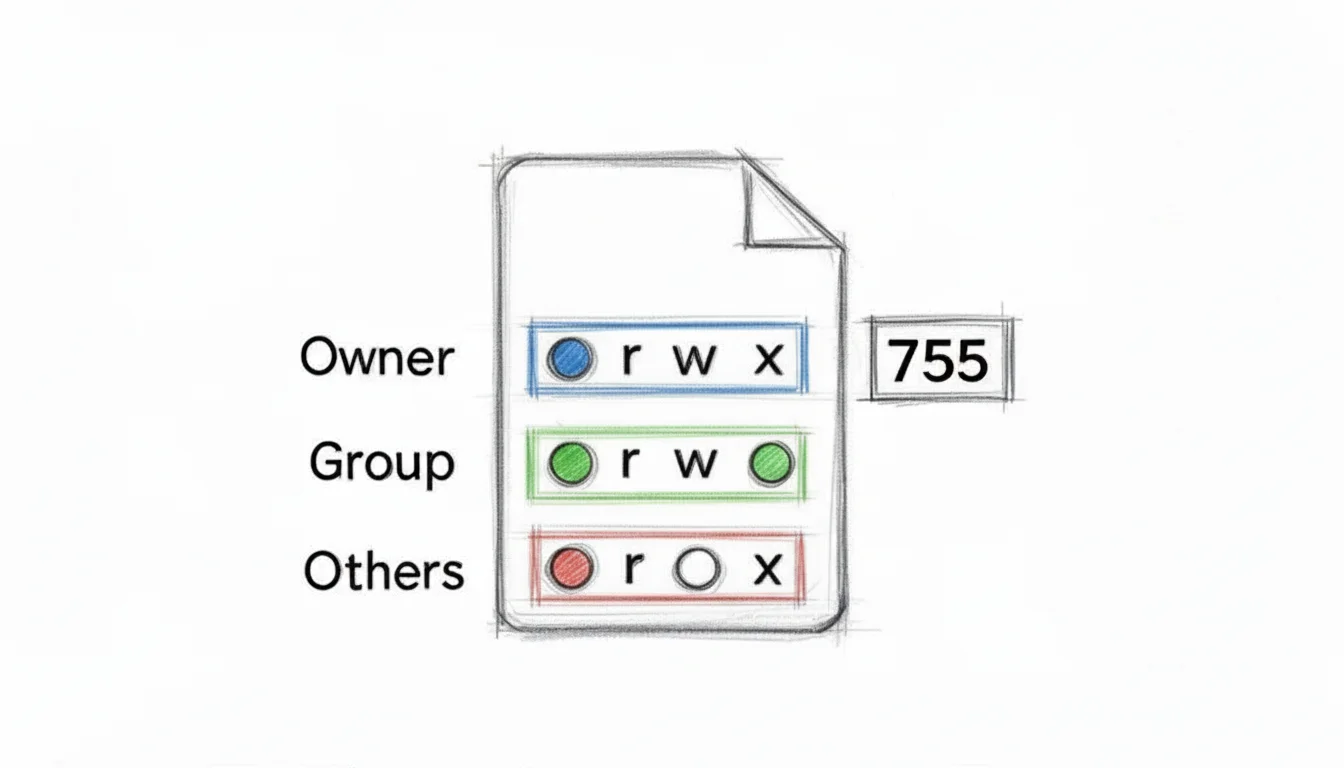
Linux file permissions are a central part of technical interviews because they define how the operating system handles security and multi-user access. Permissions control who can view, modify, or execute specific files and directories. The Linux kernel evaluates every access request by checking the user's ID (UID) and group ID (GID) against the file's metadata. Each file or directory assigns permissions to three distinct classes: the owner, the members of a designated group, and others (everyone else on the system). Handling these settings correctly is vital for keeping sensitive data private and ensuring that system services run with the minimum access required to function.
These concepts are not just for system administrators. Software developers, security analysts, and engineers working with cloud infrastructure use permissions daily to manage code repositories, application binaries, and logs. This knowledge is a basic requirement for anyone operating in shared Linux environments. It is a major component of professional certifications, such as the Linux Essentials curriculum.
Core Concepts and Examples
A strong interview response should show you are comfortable with both symbolic and numeric (octal) methods for adjusting permissions using the chmod utility. You should also understand how chown shifts ownership entirely.
- Symbolic Method (
chmod): This approach uses letters to represent permissions—rfor read,wfor write, andxfor execute. You use operators like+to grant a permission,-to take it away, or=to set a specific state regardless of the previous settings. The targets areu(user/owner),g(group),o(others), anda(all).- Example 1:
chmod u+x script.sh– Grants the owner permission to run the script as a program. - Example 2:
chmod g-w shared_document.txt– Removes write access for the group, preventing members from editing the file. - Example 3:
chmod o=r,g=rwx,u=rwx important_file– Sets exact permissions for all three categories at once: others can only read, while the owner and group have full access.
- Example 1:
- Octal (Numeric) Method (
chmod): The octal method uses a three-digit number where each digit represents one of the user categories. Each digit is the sum of the permissions you want to grant: Read (4), Write (2), and Execute (1).- Example 1:
chmod 755 script.shsets the file torwxr-xr-x.- Owner: 4 (read) + 2 (write) + 1 (execute) = 7
- Group: 4 (read) + 0 (no write) + 1 (execute) = 5
- Others: 4 (read) + 0 (no write) + 1 (execute) = 5
- Example 2:
chmod 640 sensitive_data.txtresults inrw-r-----.
- Example 1:
- Changing Ownership (
chown): Whilechmodchanges what a user can do,chownchanges who that user is. The syntaxchown user:group /path/to/fileupdates both the owner and the group. Performing this action typically requires root access orsudoprivileges because it involves shifting control of system resources.
Actionable Tips for Interviews and Securing Systems
To stand out, demonstrate that you think about security and verification, not just syntax.
- Verify Changes: Mention that you always follow up a
chmodorchowncommand by runningls -l. This command displays the long-format list, showing the permission strings and ownership names. Checking your work prevents configuration errors from lingering in production. - Discuss
umask(Certification relevant): Theumaskutility defines the default permissions for any file or directory created in the current shell session. A common defaultumaskis0022. The system calculates final permissions by subtracting theumaskfrom666for files or777for directories. In this case, new files default to644(rw-r--r--) and directories to755(rwxr-xr-x). - Recursive Caution (
-Rflag): Bothchmodandchownsupport the-Rflag, which applies changes to a directory and every file inside it. Be sure to note that this is dangerous. Applying a broad change likechmod -R 777 /would destroy system security and break the OS by changing permissions on critical SSH keys or system binaries. - Sudo and Ownership: Changing file ownership is a sensitive operation. Explain that a regular user cannot "give away" a file to another user; only the superuser can reassign ownership. This ensures that a user cannot bypass storage quotas or move files into another person’s directory without oversight.
Reflect and Apply: Think about a web server directory like
/var/www/html. You might set the directory to755so the web server can enter it, but keep configuration files containing database passwords at600so only the necessary process can read them. Why might you avoid giving thewww-datauser ownership of the entire directory?
3. Describe the process lifecycle in Linux (processes, daemons, and process states)
This subject appears frequently in linux interview questions because it tests your technical understanding of how the kernel handles execution. Knowing how a process starts, runs, and eventually terminates is required for system administration, performance tuning, and troubleshooting. Whether you are managing local hardware or cloud instances like Azure Linux VMs, you must understand the behavior of interactive processes, background daemons, and the specific states a task can occupy.
Interviewers look for more than just a list of commands. They want to see that you understand the mechanics happening under the hood. For instance, when you start a web server like Nginx, you aren't just running a program; you are initiating a parent process that might spawn several worker processes. If an application hangs, you need to know if it is stuck in an uninterruptible sleep state or if it has become a zombie that needs its parent cleared.
Core Concepts and Examples
A thorough answer explains the complete lifecycle of a process, the differences between types of processes, and the tools used to control them.
- Process Creation & States:
In Linux, almost every process is spawned by an existing parent process through a mechanism called forking. The only exception is the very first process, typically
systemdorinit, which holds Process ID (PID) 1. When a process forks, it creates a child that inherits many attributes from its parent. You can monitor these using tools likeps auxor the interactivetopandhtoputilities. - Common States:
- R (Running or Runnable): The process is either using the CPU right now or is in the run queue, waiting for its turn with the scheduler. It is active and healthy.
- S (Interruptible Sleep): Most processes stay in this state. They are waiting for an event to happen, such as a keystroke from a user or data arriving over a network socket. They can be woken up by signals.
- Z (Zombie): A zombie is a process that has finished its task and exited, but its entry remains in the process table. This happens because the parent process has not yet read the child's exit status using the
wait()system call. While zombies do not use memory or CPU, they occupy a slot in the process table. If the table fills up, the system cannot start new processes. - T (Stopped): This state occurs when a process is paused. You might see this if you press
Ctrl+Zin a terminal or send aSIGSTOPsignal. The process stays in memory but does not execute until it receives aSIGCONTsignal. - D (Uninterruptible Sleep): This is a specialized state where a process is waiting for hardware I/O, usually disk access. Unlike the standard sleep state, a process in
Dcannot be killed or interrupted by signals until the I/O operation finishes. - Example: Running
ps aux | grep 'sshd'allows you to find the Secure Shell daemon and check its current state (usuallySfor sleeping while it waits for connections).
- Foreground vs. Background Processes:
An interactive process usually runs in the foreground, meaning it occupies your terminal and prevents you from entering more commands until it finishes. You can stop a foreground process using
Ctrl+C. Conversely, a background process runs without blocking your input. To start a command in the background, you append an ampersand (&) to the end of the line.- Example: If you run
sleep 60 &, the system starts the timer and immediately returns you to the prompt. You can then use thejobscommand to see the background task orfgto bring a job back to the foreground if you need to interact with it again.
- Example: If you run
- Daemons (Services):
Daemons are processes that run continuously in the background and are not attached to any specific terminal or user session. They provide essential services like web hosting, logging, or scheduled tasks. On modern systems,
systemdmanages these services.- Example: You can use
sudo systemctl status nginxto verify if the Nginx daemon is active. If the service is failing, this command provides the recent log entries and the current process state to help you troubleshoot.
- Example: You can use
- Process Termination:
The
killcommand is the primary way to end a process. By default,killsends aSIGTERM(Signal 15), which asks the process to shut down cleanly. This gives the application a chance to save files, close database connections, and delete temporary files. If a process is unresponsive, you can usekill -9to send aSIGKILL. This signal cannot be ignored; the kernel immediately removes the process from memory. However, this should be a last resort because it prevents a clean exit. To remove a zombie process, you must usually kill the parent process or wait for the parent to properly reap the child.
Actionable Tips for Interviews and System Management
Show the interviewer you can apply these theoretical concepts to solve real-world problems.
- Demonstrate Monitoring Skills: Mention that you use
psfor quick snapshots of specific processes andtoporhtopfor observing resource usage trends. Explain how you look for high CPU usage or memory leaks by sorting these lists. Proficiency with these tools is a requirement for any sysadmin. - Explain Parent-Child Relationships: Mention the
pstreecommand. This tool provides a visual tree of which process started which. It is useful for finding the parent of a zombie process or understanding how a complex application like Chrome or a web server manages its sub-processes. - Prioritize Graceful Shutdowns: Always explain that you prefer
SIGTERMoverSIGKILL. This shows that you care about data integrity. A technician who immediately jumps tokill -9risks corrupting databases or leaving locked files that prevent the service from restarting. - Discuss Process Persistence: When you need a process to keep running after you log out of a session, you can use
nohupor a terminal multiplexer liketmuxorscreen. This is standard practice for long-running scripts or manual updates on remote servers where a network disconnect might otherwise kill the active process.
Certification Connection: Knowledge of process states and the proper use of signals is required for the CompTIA Linux+ or when troubleshooting instances in AWS EC2. Being able to manage hung services or hung processes is a common task in these environments. Ensure you are familiar with the current exam objectives to pass with confidence.
4. Explain the Linux boot process and initialization systems (systemd vs. init)
This unix linux interview question distinguishes junior candidates from senior administrators and appears frequently in advanced certification exams. Describing the Linux boot sequence shows an understanding of the foundation of the operating system. The process tracks every step from the first electrical signals at the hardware level to the moment a user can log in. This knowledge is necessary to fix a system that fails to start. The flow involves several specific stages, ending with the init system—such as systemd or SysV init—starting system services and the user environment.
Understanding this sequence is fundamental for system recovery, performance tuning, and service management. An interviewer wants to see if you can trace a boot failure to its source. The problem might be a hardware handshake issue in the BIOS/UEFI, a missing bootloader file in GRUB, a kernel panic, or a service configuration error handled by the init system.
Core Concepts and Examples
A strong answer outlines the main stages of the boot process and explains the differences between the two primary init systems: systemd and SysV init.
- BIOS/UEFI Initialization:
- Hardware firmware begins the sequence. Older machines use BIOS, while modern ones use UEFI.
- The firmware performs a Power-On Self-Test (POST) to verify that the CPU, memory, and storage are functioning.
- It then identifies the configured boot device based on a priority list.
- MBR/EFI Boot Record:
- The system looks for the Master Boot Record (MBR) or the EFI System Partition (ESP) on the boot disk.
- This location contains the initial code needed to find and execute the bootloader.
- GRUB2 Bootloader:
- The Grand Unified Bootloader (GRUB) starts and displays the boot menu. It loads the Linux kernel and the
initramfs(initial RAM filesystem) into memory. - The
initramfsprovides the drivers the kernel needs to access the physical root filesystem, especially on encrypted or RAID disks.
- The Grand Unified Bootloader (GRUB) starts and displays the boot menu. It loads the Linux kernel and the
- Kernel Initialization:
- The Linux kernel takes control and initializes detected hardware drivers.
- It mounts the actual root filesystem (
/) in read-only mode to check for errors before remounting it as read-write.
- Init System Execution (PID 1):
- The kernel launches the first user-space process,
/sbin/init, which always receives a Process ID (PID) of 1. At this point, the process differs depending on the system:- SysV init (Legacy):
- This system follows a sequential model using runlevels (0-6). It runs scripts found in directories like
/etc/rc.d/rc#.d/. - It is predictable and reliable but processes scripts one at a time, which can slow down the boot process.
- Management Example: Use
service httpd startorchkconfig httpd on.
- This system follows a sequential model using runlevels (0-6). It runs scripts found in directories like
- systemd (Modern Standard):
- This system uses targets instead of runlevels and manages services as granular units.
- It starts services in parallel to decrease boot time.
- It provides dependency management and centralized logging.
- Management Examples: Use
systemctl start nginxorjournalctl -u sshd.serviceto view logs.
- SysV init (Legacy):
- The kernel launches the first user-space process,
Actionable Tips for Interviews and Troubleshooting
Demonstrate expertise by discussing how these stages affect troubleshooting and efficiency.
- Differentiate with Commands: Use concrete command examples. For systemd, mention
systemctl start/stop/enable/disable <service>,journalctl -xefor error details, andsystemd-analyzeto find bottlenecks in boot performance. For SysV init, useservice <service> startandchkconfig <service> on. - Discuss Troubleshooting Scenarios: Explain how to interrupt the GRUB bootloader to edit kernel parameters. Adding
singleorinit=/bin/bashprovides a shell for password recovery or manual repairs. You can also usesystemd.unit=rescue.targetto enter a maintenance environment. - Explain Dependencies: Highlight the dependency management in systemd. If a database must start before a web server, systemd handles this automatically. Use
systemctl list-dependencies <service-name>to visualize the startup order and find why a service failed to start. - Acknowledge Both Systems: Mention that systemd is the standard on current distributions like RHEL/CentOS 7+, Ubuntu 16+, and Debian 8+. However, knowledge of SysV init remains useful for managing legacy hardware and embedded devices.
Reflect and Apply: If a database failed to start after a system reboot, which systemd commands would you use to find the specific point of failure?
5. How does package management work in Linux (apt, yum, pacman)?
Package management is a standard topic in any list of unix linux interview questions. This question evaluates your ability to maintain, secure, and deploy software on a system, which are primary duties for any IT professional. Package managers automate the processes of installing, updating, configuring, and removing software. They are designed to handle dependencies. This means when you install an application, the manager also identifies and installs the necessary libraries and prerequisite programs required for that application to function correctly. Different Linux distributions use different package managers. Knowing the major tools and their specific syntax is a requirement for effective system administration.
Understanding these tools proves you can handle daily operations like applying security patches or managing software lifecycles. This skill is required for maintaining the health and stability of a Linux environment and for keeping systems compliant with organizational standards. Practical knowledge of package management separates candidates with only a theoretical understanding from those with hands-on, production-ready experience.
Core Concepts and Examples
A strong answer compares the command syntax for major package management systems and highlights their common functions.
- Debian/Ubuntu (
apt/apt-get): These distributions use the Advanced Package Tool (APT). It is known for reliable dependency resolution and a straightforward command structure. It is the standard for Debian-based systems and their many derivatives. - Common Commands:
sudo apt update: Updates the local database of available packages from the repositories.sudo apt upgrade: Installs the newest versions of all packages currently installed on the system.sudo apt install htop: Installs a new software package, such as thehtopinteractive process viewer.sudo apt remove <package-name>: Removes the specified package from the system.sudo apt autoremove: Deletes packages that were originally installed as dependencies but are no longer needed by any software.
- Red Hat/CentOS/Fedora (
yum/dnf): Historically, these systems usedyum(Yellowdog Updater, Modified). Modern versions, beginning with Fedora 18 and RHEL/CentOS 8, primarily usednf(Dandified YUM).dnfwas created to improve onyumby providing better performance, more efficient memory usage, and better dependency handling. Most basic commands are compatible between the two. - Common Commands:
sudo dnf check-update: Checks for available updates in the repositories without applying them.sudo dnf upgrade: Downloads and installs updates for all installed packages and their dependencies.sudo dnf install httpd: Installs the Apache web server.sudo dnf remove <package-name>: Uninstalls a specific package.sudo dnf autoremove: Cleans up orphaned dependencies that are no longer required.
- Arch Linux (
pacman): Arch uses a manager calledpacman. It is written in C and is designed to be fast and simple. It uses simple compressed files as a package format and focuses on maintaining a "rolling release" system where the system is updated continuously rather than in major version jumps. - Common Commands:
sudo pacman -Syu: Synchronizes the package database and upgrades the entire system in one step.sudo pacman -S nano: Installs a package like thenanotext editor.sudo pacman -R <package-name>: Removes a package from the system.sudo pacman -Qdt: Lists all packages that were installed as dependencies but are no longer required by any other package.
Actionable Tips for Interviews and Production Environments
Show the interviewer that you think about maintenance, security, and troubleshooting rather than just memorizing installation commands.
- Discuss Repository Management: Explain how to manage software sources. This involves editing configuration files like
/etc/apt/sources.listfor Debian and Ubuntu or adding.repofiles in the/etc/yum.repos.d/or/etc/dnf/repos.d/directories for RHEL-based systems. This ability is necessary to add third-party, internal, or custom software repositories in an enterprise setting. - Highlight Security Practices (Certifications focus): Emphasize the importance of running updates like
apt upgradeordnf upgradeto apply security patches. Discuss automation tools such asunattended-upgradesfor Debian ordnf-automaticfor Red Hat. These tools help maintain a strong security posture on non-critical systems, which aligns with the objectives of certifications like CompTIA Security+. - Mention Dependency and File-Level Troubleshooting: Demonstrate your technical depth by mentioning commands like
apt-cache depends <package>ordnf repoquery --requires <package>to inspect dependencies. You can also useapt-file search <filename>ordnf provides <filename>to find which package owns a specific file. These commands are useful for fixing broken installations or identifying the source of a binary for an audit. - Control Package Versions (Pro Tip): Explain how to prevent a package from being updated. Use
apt-mark hold <package-name>in APT or theexclude=setting in theyum.confordnf.conffiles. This is a vital technique to ensure that a critical package, such as a database server or a specific kernel version, does not get upgraded automatically and cause instability in a production system.
Reflect and Apply: Imagine you need to deploy a specific version of a library to an AWS EC2 instance because a legacy application requires it. How would you ensure your package manager doesn't accidentally upgrade it later?
6. What are hard links and symbolic links, and how do they differ?
This question appears frequently in unix linux interview questions because it separates candidates who merely use the command line from those who understand the underlying filesystem mechanics. You are being tested on your knowledge of inodes, data blocks, and how Linux organizes file metadata. To answer effectively, you must explain that a hard link is an additional directory entry pointing to an existing inode. It functions as an alias for the same physical data on the disk. Conversely, a symbolic link (or symlink) is a distinct file that contains a path string pointing to another file or directory.
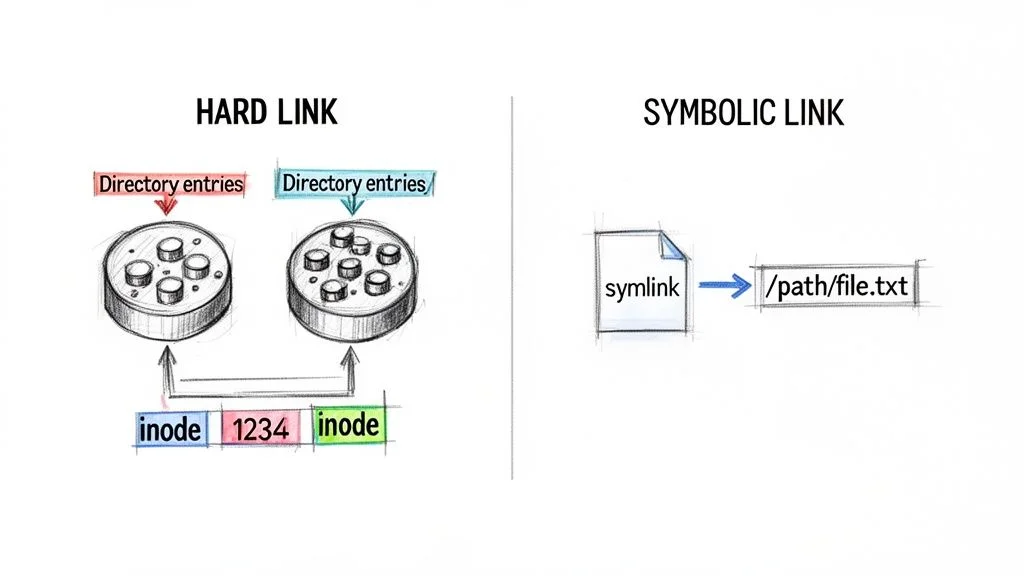
Differentiating between these two is vital for system administrators handling backups, managing software versions, or troubleshooting application failures. Errors often arise when developers treat symlinks as actual data files or fail to account for how hard links impact disk space reporting. Understanding the relationship between filenames and inodes is a requirement for advanced system maintenance and automation.
Core Concepts and Examples
To provide a strong answer, explain the creation commands, the resulting behavior of the filesystem, and the specific limitations of each link type.
- Hard Link:
- Concept: A hard link creates a direct reference to the inode of the source file. In the eyes of the operating system, there is no primary file; all hard links to an inode are identical in status and priority.
- Behavior: If you delete the file used to create the link, the data remains accessible through the hard link. The filesystem only marks the disk space as available once the link count for that specific inode reaches zero. This makes hard links a safe way to ensure data persists even if a specific directory entry is removed.
- Limitations: Hard links are restricted to the same filesystem or partition where the original inode resides. You cannot create a hard link that points from one disk partition to another because inode numbers are only unique within a single filesystem. Additionally, modern Linux kernels generally prevent users from creating hard links to directories to avoid infinite loops and filesystem corruption.
- Command:
ln original_source.txt hard_link_copy.txt - Verification: Use
ls -ito view the inode number. Both files will share the same number. Usels -lto check the link count in the second column of the output.
- Symbolic Link (Soft Link / Symlink):
- Concept: A symbolic link is a small, separate file that holds the path—either absolute or relative—to a target file or directory. It functions like a pointer or a Windows shortcut.
- Behavior: Because a symlink relies on a path string, it is fragile. If the target file is moved, renamed, or deleted, the symlink remains but points to nothing. This is known as a dangling or broken link. Deleting the symlink itself has zero impact on the original data or its inode.
- Flexibility: Symbolic links are more versatile than hard links. They can point to directories and can span across different physical disks, network mounts, or partitions.
- Command:
ln -s /full/path/to/target.txt symlink_name.txt - Verification: Running
ls -lshows anlat the beginning of the permission string. The output also displays an arrow showing the target path, such assymlink_name.txt -> /full/path/to/target.txt.
Actionable Tips for Interviews and Development
Demonstrate how you apply these concepts to practical problems in production environments.
- Identify Link Type: Mention using
ls -lfor a quick visual check of symlinks. For more technical details, use the stat command. It reveals the inode number, the total number of links, and the specific filesystem ID. This helps you determine if two files are truly sharing data or just look similar. - Discuss Use Cases:
- Hard Links: These are useful for making space-efficient snapshots or backups within a single partition. If you have a 1GB log file, creating a hard link to it consumes no extra disk space for the content, only a few bytes for the new directory entry.
- Symbolic Links: Use these for application versioning and library management. For instance,
/usr/bin/pythonoften points to a specific version like/usr/bin/python3.10. When you upgrade the software, you only update the symlink rather than moving large binaries or changing environment variables in multiple places.
- Troubleshooting Broken Links: Show operational awareness by explaining how to find dead symlinks that might cause application crashes. You can use the command
find . -xtype lto locate all links in a directory tree that point to non-existent targets. This is a common cleanup task during system audits or after large-scale file migrations.
Common Pitfall: Removing the target file of a symbolic link breaks the link immediately. However, removing a file that has multiple hard links only decreases the link count. The data stays on the disk and remains fully accessible until every hard link is manually removed. This distinction is vital for data integrity and storage management.
7. Explain environment variables and how to set and use them
Environment variables function as the connective tissue between a user session and the configuration of specific applications. They are a staple of unix linux interview questions because they ensure systems operate consistently across physical hardware, virtualized containers, and cloud functions. These values are dynamic and named, and they dictate how various running processes interact with the operating system. Essentially, an environment variable is a key-value pair, like PATH=/usr/bin:/bin, that the shell passes to every child process it creates. These variables control many aspects of the system, including where the shell searches for executable files and how applications find database connection strings or API keys.
Demonstrating that you can view, set, and manage these variables proves to an interviewer that you can control system behavior. It shows you know how to write reliable, configurable scripts and deploy software in a secure manner. This knowledge is a fundamental requirement for anyone working in system administration, software development, or DevOps, as it directly influences how every piece of software communicates with its environment.
Core Concepts and Examples
A high-quality answer requires you to show the different methods for interacting with environment variables. You should also be prepared to explain their scope and the methods used to make them persist after a reboot or logout.
- Viewing Variables:
- You can run the
envorprintenvcommands to see every environment variable currently exported to your active session. - To check the value of a specific variable, use the
echocommand followed by the variable name prefixed with a dollar sign. - Example: Running
echo $PATHwill output a colon-separated list of directories where the shell searches for commands. - Example: Running
echo $HOMEdisplays the path to the current user's home directory.
- You can run the
- Setting Variables: You can define variables for the current shell session or configure them to stay active permanently.
- Session-only:
MY_VAR="hello world"defines a shell variable. This value stays within the current shell and is not shared with other programs.export MY_VAR="hello world"defines an environment variable. This action makes the value available to the current shell and any child processes or scripts started from that shell.
- Persistent: To ensure a variable is available in all future sessions, you must add the
exportcommand to the correct shell configuration file.~/.bash_profileor~/.profile: The system reads these files once when you first log in. This is the standard location forPATHupdates and global environment settings.~/.bashrc: The system reads this file every time you start a new interactive shell, such as when you open a terminal window inside a desktop environment. This is the best place for aliases and shell-specific functions./etc/profileor/etc/environment: These files store system-wide variables that affect every user on the machine. You generally needsudoaccess to edit these files.
- Session-only:
- Removing Variables: The
unsetcommand allows you to delete a variable from the current environment.- Example:
unset MY_VARwill remove the variable so it is no longer accessible.
- Example:
Actionable Tips for Interviews and Secure Configuration
You should aim to go beyond simple definitions. Explaining the practical side of variable management shows you prioritize security and system maintainability.
- Know Your Shell Files: Be ready to explain the difference between
~/.bash_profileand~/.bashrc. Mention thatPATHmodifications typically belong in the profile file, while aliases and custom functions belong in the rc file. Certification exams often use this distinction to test your understanding of shell initialization. - Show Verification: Explain that after you change the
$PATHvariable, you should use thewhich <command>tool to confirm the shell finds the intended executable. This shows you have a habit of verifying your work. - Scripting Safeguards: Discuss using the
${VARIABLE:-default_value}syntax in scripts. This provides a fallback if a variable is missing, which keeps your automation from failing due to minor configuration gaps. This approach makes your scripts far more resilient. - Global vs. Local Variables: State that you generally avoid editing global files like
/etc/profileunless a variable must be applied to every single user. Most application-specific settings should remain in the user’s home directory or within specific application configuration managers to minimize the risk of system-wide errors. - Security for Sensitive Data: Mention that environment variables are often used for API keys and database credentials in development or CI/CD pipelines. However, emphasize that production systems should use professional secret management services. Tools like AWS Secrets Manager, Azure Key Vault, or HashiCorp Vault provide a much higher level of security than plain-text environment variables.
Reflect and Apply: Imagine you are writing a script that needs to use a tool installed in
/opt/mytool/bin. How would you ensure the system always finds this tool without typing the full path every time you call it?
8. What is the difference between sudo and su commands?
This question is a staple in any list of unix linux interview questions. It tests your knowledge of privilege management, system security, and auditing. These concepts are vital for professional IT roles. Both su and sudo allow users to gain elevated privileges, usually as the root user. However, they operate in fundamentally different ways and carry distinct security implications. The su (substitute user) command replaces your entire current shell session with that of another user. In contrast, sudo (superuser do) executes a specific command with another user's privileges while keeping your original session active.
Correctly managing elevated access shows a professional security mindset. Misusing these tools can create vulnerabilities or make auditing difficult during compliance reviews for frameworks like PCI DSS or HIPAA. Understanding the technical mechanics of each command ensures you follow the principle of least privilege.
Core Concepts and Examples
To provide a strong answer, you must explain the functional, authentication, and security differences using concrete examples.
-
su(Substitute User):- Purpose: This command switches the entire shell session to another account. If you do not specify a username, it defaults to the root user.
- Authentication: You must provide the password of the target account. If you want to become the root user, you need the actual root password.
- Environment:
su -orsu - root: This version switches to the root user and initializes the full login environment. It loads the root user's specific path, profile, and environment variables. This is the standard method for a complete administrative session.su john: This switches the shell to the user "john" but keeps your current environment settings. This can cause issues if the search paths or shell variables do not match the requirements of the new user.
- Auditing: This method offers poor visibility. System logs typically show that the
sucommand was used, but they do not record the individual commands executed during the subsequent session.
-
sudo(Superuser Do):- Purpose: This command runs a specific command with the privileges of another user, usually root. It does not require you to switch your entire shell environment.
- Authentication: You use your own password for authentication. This is safer than sharing a central administrative password with multiple team members.
- Authorization: The system controls access via the
/etc/sudoersfile. This configuration defines exactly which users have permission to run specific commands. - Environment: Commands typically run within a restricted and clean environment. This setup prevents your personal shell settings from causing unintended side effects during administrative tasks.
- Auditing: This provides excellent tracking. The system records every command executed through
sudo, along with the identity of the user who ran it. These logs are usually found in/var/log/auth.logor viewed throughjournalctl. - Examples:
sudo apt update: Runs the package update command as root.sudo -i: Opens an interactive root shell similar tosu -, but authenticates with your password and follows the rules in thesudoersfile.sudo -u www-data ls /var/www: Executes the list command as the "www-data" user. This is helpful for troubleshooting web server file permissions without becoming root.
Actionable Tips for Interviews and Security Best Practices
Interviewers look for evidence that you apply security principles in real-world scenarios. Show that you prioritize accountability and system integrity.
- Champion
sudo: Express a clear preference forsudoin production environments. Explain that it supports the principle of least privilege by allowing specific access rather than full control. Its detailed audit trail is necessary for meeting modern security standards. - Mention
visudo: Always state that you edit the/etc/sudoersfile using thevisudocommand. This tool performs a syntax check before saving your changes. It prevents the disaster of locking yourself out of root access because of a simple typo or formatting error. - Discuss Least Privilege: Explain how to grant limited administrative access. Instead of giving a junior admin full root access, use
sudoto let them manage only the services they need. For example, you might allow a developer to runsudo /usr/bin/systemctl restart nginxwithout giving them access to sensitive system configuration files. - Password Policies: Explain that
sudoremoves the need to share the root password. This significantly limits the attack surface. Many hardened systems disable direct root login entirely. This configuration forces every administrative action to pass throughsudofor better accountability and tracking.
Security Best Practice: Always configure
sudofor administrative tasks and disable directrootlogin. This ensures accountability and adheres to the principle of least privilege.
9. Explain the purpose and structure of /etc/passwd and /etc/shadow files
This specific unix linux interview question tests your knowledge of user management and the mechanics of system authentication. Understanding how a system stores user account details and credentials is a basic requirement for maintaining system security. The /etc/passwd file serves as a readable database of user accounts, while the /etc/shadow file isolates encrypted password hashes. This design limits exposure and helps prevent unauthorized access to sensitive credentials.
Knowing these files is a requirement for administrators, security specialists, or anyone working in DevOps. You will use this knowledge for user provisioning, troubleshooting login failures, and hardening system security. Correct configuration of these files supports Identity Access Management concepts on Linux distributions, which helps maintain compliance and overall stability.
Core Concepts and Examples
To answer this question effectively, explain the structure of both files and how they work together to manage logins and permissions.
-
/etc/passwd:- Purpose: This plain-text file is usually world-readable with permissions like
644. It contains basic information about every user account on the system. Many system utilities use this file to map numerical User IDs (UIDs) to human-readable names and to find a user's home directory or shell. - Structure: Every line represents one user account. Fields are separated by colons and follow a strict order of seven entries:
- Username: The string used to log into the system, such as
sara. - Password Placeholder: In early Unix versions, this field held the password hash. Today, it usually contains an
xor a*. This indicates that the actual hash resides in the shadow file, which is a key security improvement. - User ID (UID): A unique number assigned to the user. The
rootaccount always uses0, while standard users typically start at1000or1001depending on the distribution. - Group ID (GID): The identification number for the user's primary group.
- User Info (GECOS): A field for administrative details. It often stores the user's full name, like
Sara Jennings, or office phone numbers. - Home Directory: The path to the folder where the user starts their session, such as
/home/sara. This is where configuration files like.bashrcare stored. - Login Shell: The path to the command-line interpreter that starts when the user logs in, such as
/bin/bash. Setting this to/sbin/nologinor/bin/falseprevents a user from accessing an interactive shell.
- Username: The string used to log into the system, such as
- Example:
sara:x:1001:1001:Sara Jennings:/home/sara:/bin/bash
- Purpose: This plain-text file is usually world-readable with permissions like
-
/etc/shadow:- Purpose: This file is restricted for security reasons. It is generally owned by root and has permissions set to
0000or0640so that standard users cannot read it. It stores the encrypted password hashes and the rules for password expiration. - Structure: Each line corresponds to a user in
/etc/passwdand contains nine colon-separated fields:- Username: This must match the name found in the passwd file.
- Hashed Password: The encrypted string of the user's password. A prefix like
$6$often indicates the use of the SHA-512 hashing algorithm. - Last Change Date: This number represents the days between the Unix Epoch (January 1, 1970) and the date the password was last modified. For example,
19450indicates a change in early 2023. - Min Password Age: The minimum number of days that must pass before a user is allowed to change their password again.
- Max Password Age: The maximum duration a password remains valid. After this time, the system requires a password change.
- Warning Period: The number of days before expiration that the system starts notifying the user to change their credentials.
- Inactivity Period: How many days an account can remain with an expired password before the system automatically disables it.
- Expiration Date: An absolute date, measured in days since the Epoch, when the account will be deactivated regardless of password status.
- Reserved Field: A blank field kept for future system use.
- Example:
sara:$6$hash_value$:19450:0:99999:7:::
- Purpose: This file is restricted for security reasons. It is generally owned by root and has permissions set to
Actionable Tips for Interviews and Security Operations
When discussing these files, highlight your familiarity with the tools and safety protocols used to manage them.
- Emphasize Safe Editing: Explain that you should avoid editing these files manually with a standard text editor. Use specialized commands like
useradd,usermod, orvipw. These tools provide locking mechanisms and syntax checking to prevent file corruption that could lock everyone out of the system. - Mention Verification Tools: Use
pwckandgrpckto verify the consistency of the user and group files. These utilities check for formatted errors, duplicate IDs, or missing directories, helping you catch problems before they cause login issues. - Discuss Security Posture: Explain why file permissions are critical. While
/etc/passwdneeds to be readable so programs can identify file owners,/etc/shadowmust be strictly protected. If an attacker gains read access to the shadow file, they can attempt offline brute-force attacks against the password hashes. - Show Proactive Management: Talk about using the
chage -l <username>command. This tool allows you to view and modify password aging information quickly. It demonstrates that you can manage account security policies effectively without manually calculating Epoch days.
Critical Security Note: The separation of account metadata from authentication hashes is a vital security layer. Always verify that
/etc/shadowpermissions are set correctly to stop unauthorized users from accessing encrypted password data.
10. How do you search for files and text in Linux (find, grep, locate)?
This question is a staple in technical screenings because it evaluates your ability to handle live system administration and troubleshooting tasks. Proficiency in finding files and searching through their contents shows that you can navigate the command line effectively. The primary tools for these tasks are find for metadata-based searches, grep for finding text patterns within files, and locate for fast filename lookups using a pre-indexed database.
Administrators use these commands for log analysis, configuration management, and security audits. For instance, you might need to identify a misconfiguration in an /etc file or find large log files for cleanup in /var/log. This practical knowledge is a part of many Network Monitoring and Troubleshooting procedures used to maintain system health.
Core Concepts and Examples
To answer this question well, explain the specific purpose and strengths of each tool with practical examples.
-
find:
- Purpose: This command searches for files and directories in a directory hierarchy based on criteria like name, type, size, modification time, and permissions. It crawls the filesystem in real-time, making it accurate but potentially slow on large disks or network-attached storage.
- Examples:
- Security Audit:
find / -perm -u+s -type f– This identifies all files with the SUID bit set. These files run with owner permissions and require monitoring for security risks. - Cleanup:
find /var/log -name '*.log' -mtime +7 -delete– This finds log files older than seven days and removes them. Always test this without the delete flag first to see what will be removed. - Large Files:
find /home/user -type f -size +1G– This finds regular files larger than 1 Gigabyte in a specific directory. - Directories Only:
find /etc -type d- This lists only directories within the etc path, ignoring regular files or symbolic links.
- Security Audit:
-
grep:
- Purpose: This utility scans text content inside files for lines matching a pattern. It is the primary tool for log analysis and code review. It reads the data within the file rather than looking at the file's properties.
- Examples:
- Recursive Search:
grep -r 'ERROR' /var/log– This searches for the word "ERROR" in all files within /var/log and its subdirectories. - Filtering Processes:
ps aux | grep 'nginx'– This filters the process list to show only lines containing "nginx," which helps you see if a service is running. - Case-insensitive:
grep -i "password" /etc/passwd- This finds the string regardless of whether it is capitalized or lowercase. - Exclude Patterns:
grep -v "INFO" /var/log/app.log- This shows all lines in a log file except those containing "INFO," helping you focus on errors or warnings. - Counting Matches:
grep -c "failed" /var/log/auth.log- This returns the total number of lines that contain the word "failed" rather than printing the lines themselves.
- Recursive Search:
-
locate:
- Purpose: This tool uses a pre-built database, typically updated daily by the updatedb command. It finds files by name very quickly. It is faster than find for simple name lookups but does not show files created since the last database update.
- Examples:
- Fast Search:
locate my_script.sh– This quickly returns the path to the file. - Case-insensitive Locate:
locate -i MY_SCRIPT.SH- This finds the file even if you do not remember the exact casing of the filename.
- Fast Search:
Actionable Tips for Interviews and Advanced Troubleshooting
Show the interviewer you understand when and how to combine these tools for complex tasks.
Combine Tools with Pipes and xargs: You can pipe the output of one command into another. For example, find . -name '*.conf' -print0 | xargs -0 grep 'ListenAddress' searches for a configuration setting within all .conf files. Using -print0 and -0 ensures the command handles filenames with spaces correctly. This demonstrates you can build command chains to solve real-world problems.
Select the Correct Tool: Clearly state your logic for tool selection:
- Use locate for fast filename lookups when you know the file exists on the system.
- Use find for searches based on file attributes or when you need to execute a command on every file found.
- Use grep for content inspection, especially when debugging applications or analyzing security logs.
Modern Alternatives for Logs: Mention journalctl for logs managed by systemd. Instead of using grep on text files in /var/log, you would use journalctl -u sshd.service on modern systems. This shows you are familiar with current Linux standards.
Regular Expressions and Advanced Tools: Briefly mention that grep supports regular expressions with the -E flag. If a task requires more advanced text manipulation, explain that tools like awk are better for field-based data and sed is better for transforming text streams.
Performance Awareness: Running find on the root directory can be resource-intensive. Mention using the -maxdepth flag to limit how far find descends into the directory tree to preserve system performance during a search. This shows you care about the impact your actions have on production systems.
Top 10 Linux Interview Questions Comparison
| Topic | Implementation complexity | Resource requirements | Expected outcomes | Ideal use cases | Key advantages |
|---|---|---|---|---|---|
| Absolute vs Relative Paths | Low — requires understanding the root directory structure and current working directory. | Minimal — basic shell environment and standard filesystem access. | Reliable navigation within scripts and accurate resolution of file paths. | Shell scripting, automation, file operations, and daily command-line navigation. | Absolute paths are unambiguous; Relative paths are shorter and more portable for scripts. |
| File Permissions (rwx, chmod, chown) | Moderate — involves octal or symbolic notation, ownership logic, and special bits like SUID. | Basic CLI tools like chmod; root access is required for making ownership changes. | Controlled file access and improved system security via least privilege principles. | Multi-user systems, service hardening, and meeting organizational compliance standards. | Fine-grained access control; changes are easily tracked and auditable via logs. |
| Process Lifecycle (states, daemons, signals) | Moderate to high — covers states like running, sleeping, zombie, and orphan processes. | Monitoring tools such as ps, top, or htop, and root access for signal management. | Effective troubleshooting and precise control over system process execution and resource use. | Server management, performance tuning, and diagnosing hung applications or memory leaks. | Enables real-time monitoring, graceful shutdowns, and management of background daemons. |
| Boot Process & Init (systemd vs init) | High — includes firmware (BIOS/UEFI), bootloaders like GRUB, kernel loading, and init systems. | Access to GRUB configs, systemctl, journalctl, and system recovery environment tools. | Reliable system booting, efficient service orchestration, and faster overall boot times. | System recovery, service management, and optimization of the boot sequence. | systemd allows parallel service startup; init offers simplicity and legacy compatibility. |
| Package Management (apt, yum, pacman) | Moderate — requires knowledge of different syntaxes and handling complex dependency trees. | Stable network access, configured repositories, and standard package management utilities. | Managed software installations, routine updates, and critical security patching workflows. | General system maintenance, automated deployments, and security patching workflows. | Automated dependency resolution; centralized official repositories; ability to rollback updates. |
| Hard Links vs Symbolic Links | Low to moderate — hinges on understanding inode structures versus simple path pointers. | Filesystem support for links, utilizing the ln, readlink, and stat utilities. | Flexible file referencing and storage-efficient aliases for files and directories. | System backups, software versioning, and creating shortcuts across different filesystems. | Hard links save space without duplication; Symlinks offer cross-filesystem flexibility. |
| Environment Variables | Low — involves shell syntax, scope nuances, and persistent versus session-based settings. | Standard shell configuration files and supported application runtime environments. | Configurable runtime behavior and highly portable automation or deployment scripts. | Application configuration, cloud deployment, and complex shell scripting logic. | Centralized, overridable configuration; simplifies testing across different environments. |
| sudo vs su | Low to moderate — simple usage but requires understanding the sudoers configuration file. | sudo package installation, sudoers configuration via visudo, and logging capabilities. | Secure privilege delegation accompanied by detailed administrative audit trails. | Administrative tasks and controlled privilege escalation without sharing root passwords. | sudo provides fine-grained, auditable access; su switches the full user environment. |
| /etc/passwd & /etc/shadow | Moderate — requires understanding strict file formats and restrictive filesystem permissions. | Root access and standard user management tools like useradd or usermod. | Secure user authentication and structured account management across the system. | User provisioning, security authentication audits, and general security operations. | Separation of password hashes enhances security; maintains UID and GID mapping. |
| Searching Files/Text (find, grep, locate) | Low to moderate — involves regex patterns and complex filtering options. | find, grep, and locate tools; requires the updatedb command for indexed searches. | Fast, precise identification of filenames and specific text content within files. | Log file analysis, configuration discovery, and performing deep system audits. | find offers powerful filters; grep scans content; locate provides near-instant results. |
Beyond the Basics: Your Path to Mastery
Congratulations on finishing this list of unix linux interview questions. You have reviewed essential concepts, from the mechanics of absolute and relative paths to the specific stages of the Linux boot process. You also covered process management and system observation. Grasping these ideas is a significant accomplishment. It moves you past basic familiarity and prepares you for the technical expectations of professional systems administration roles and industry certifications.
True competence grows at the command line. Theoretical knowledge must be tested through practical application in a shell environment. The most important lesson here is the value of active, deliberate practice. Do not stop at memorizing the definition of hard and symbolic links. Create them on your own filesystem. Delete the original file and see how the link reacts. Do not just read about grep options. Construct complex regular expressions to pull specific data from a 10,000-line log file to see how the tool behaves under pressure.
True mastery in Linux is not about knowing every command by heart. It is about understanding the underlying principles so well that you can confidently solve problems you have never encountered before. It involves building the intuition to know which tool to use and why to achieve efficiency and security.
Turning Knowledge into Job-Winning Skill
You need a structured method to move from reading to doing. Create a consistent feedback loop where you apply, test, and verify every concept you encounter.
- Deconstruct and Rebuild: Look at the command examples in this guide, like a
findcommand using multiple logic gates or agrepstring with regular expressions. Break these commands down to the smallest part. Determine exactly what every flag contributes to the final output. Change one variable and see how the result shifts. For instance, if you find files modified in the last 7 days, try to narrow that search further. Locate only executable files over 10MB that belong to a specific service account. This exercise teaches you the logic behind the syntax rather than just the syntax itself. It ensures you can modify commands on the fly during a technical screening. - Simulate Real-World Scenarios: Use a virtual machine or a cloud-based instance for testing. Tools like VirtualBox or KVM allow you to build a local lab, while AWS EC2 or Azure VMs offer a way to practice in a cloud environment. Use these spaces to perform tasks common to a sysadmin. Install and configure a web server like Nginx. Write a shell script that performs a backup, checks for successful completion, and sends an alert if the process fails. You might even intentionally break a configuration file or change file permissions to lock yourself out. Then, use your troubleshooting skills to restore access. Keep a log of your work in a simple text file to track your progress and solutions.
- Embrace Spaced Repetition for Long-Term Retention: Your brain naturally loses access to information if it is not used. To keep these technical details fresh, you must review them at specific intervals. This is especially useful for certification preparation. Instead of one long study session, try 20 or 30 minutes of focused practice every day. Focus on recalling the answers to specific unix linux interview questions from memory before checking the text. This method of active recall combined with spaced intervals is far more effective for long-term memory than a single night of cramming. By repeating the exercise after one day, then three days, then one week, you solidify the knowledge.
A Structured Path Forward with MindMesh Academy
Self-study is a strong starting point, but a structured environment can make your preparation more efficient. This is useful when you are aiming for difficult certifications like CompTIA Linux+ or the Red Hat Certified System Administrator (RHCSA). Platforms that use learning science can help you organize the many details of networking, shell scripting, and user permissions.
MindMesh Academy provides an environment designed to help you manage and master the information required for modern IT roles. The system uses an algorithm to schedule your review sessions based on your past performance. If you struggle with a specific concept like inode exhaustion or sticky bits, the system will present that material more frequently. If you have mastered a topic like directory navigation, it will appear less often. This method ensures you spend your time where it is needed most. You turn your weak areas into strengths. By following a structured path, you can enter your next interview or exam with the confidence that your knowledge is practical and permanent. You have analyzed the core questions. Now you must apply that knowledge to prove your expertise.
Ready to turn these interview questions into job-winning skills and certification success? MindMesh Academy uses proven learning techniques like Spaced Repetition and active recall to help you master Linux concepts for certifications and interviews. Stop cramming and start building lasting knowledge by visiting MindMesh Academy to begin your structured learning path today.
Ready to Get Certified?
Prepare for your certifications using expert study guides, practice exams, and spaced repetition flashcards at MindMesh Academy:

Written by
Alvin Varughese
Founder, MindMesh Academy
Alvin Varughese is the founder of MindMesh Academy and an enterprise architecture leader. An electrical engineer by training, he moved from factory automation in South Africa to cloud architecture at GE Appliances and Humana (Fortune 50), and holds 20 professional certifications including AWS Solutions Architect Professional, Azure DevOps Engineer Expert, and Microsoft Agentic AI Business Solutions Architect. He built MindMesh Academy after interviewing too many highly certified candidates who couldn't answer basic questions: the goal is prep that makes you better at the job, not just able to pass the exam.